
Table of Contents
Pro Feature
This is a part of the Visual Portfolio Pro plugin.
Purchase the Pro plugin to access this and other advanced features.
Connect a social account, and the plugin imports its posts into WordPress and shows them in a Visual Portfolio block. Imported posts become Social Items in the admin, their images are stored in the Media Library, and the feed is refreshed by WP-Cron.
Networks
| Network | Connection | What is imported |
|---|---|---|
| Connect button (Instagram login; Business or Creator account) | Photos, videos and Reels of the account, carousels as their first image | |
| YouTube | API key and channel ID | Videos of a channel or a playlist |
| Vimeo | App credentials | Videos of a user, showcase (album), group or channel |
| Unsplash | Connect button | Photos by search, by user, by collection |
| X | App keys | Tweets of an account, with their photos |
| Flickr | API key | Public photos of a user, a gallery, a group or an album |
| Dribbble | Connect button | Your own shots |
| Twitch | Connect button | Clips, streams or videos of a channel |
| VK | Connect button | Posts of a wall or a group |
| RSS | Feed URL | Feed items with their first image |
Facebook and Google Photos are not available (Google Photos was removed in 3.5.0).
Set up a feed
- Visual Portfolio → Settings → Social Feeds. Open the tab of the network and click + Connect. Fill the fields (or complete the login popup), then Save Changes.
- The first import starts right after saving. It runs in the background; depending on the network, WP-Cron and the number of posts it takes from seconds to several minutes.
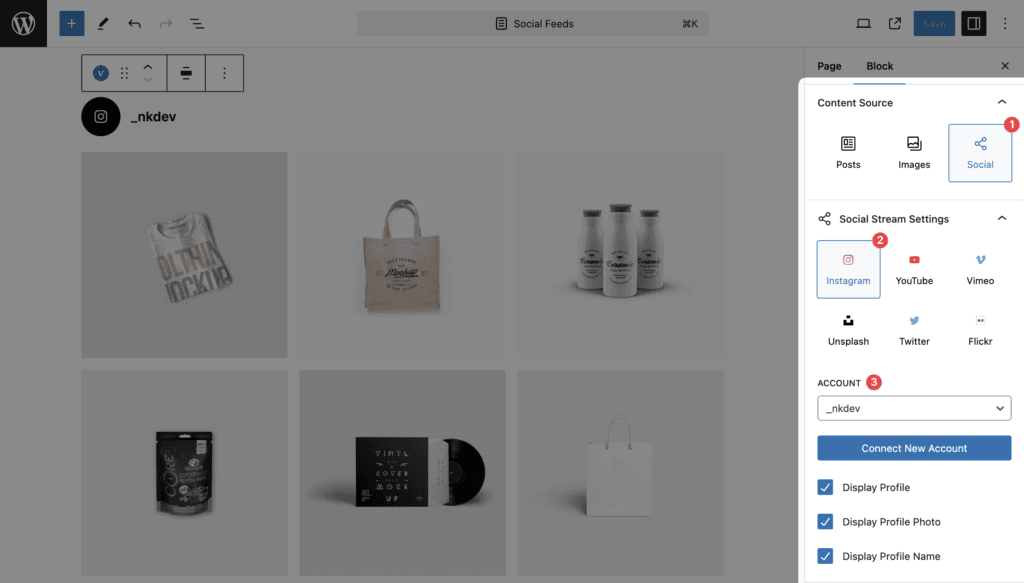
- Add a Visual Portfolio block, choose the Social source, the network and the account.
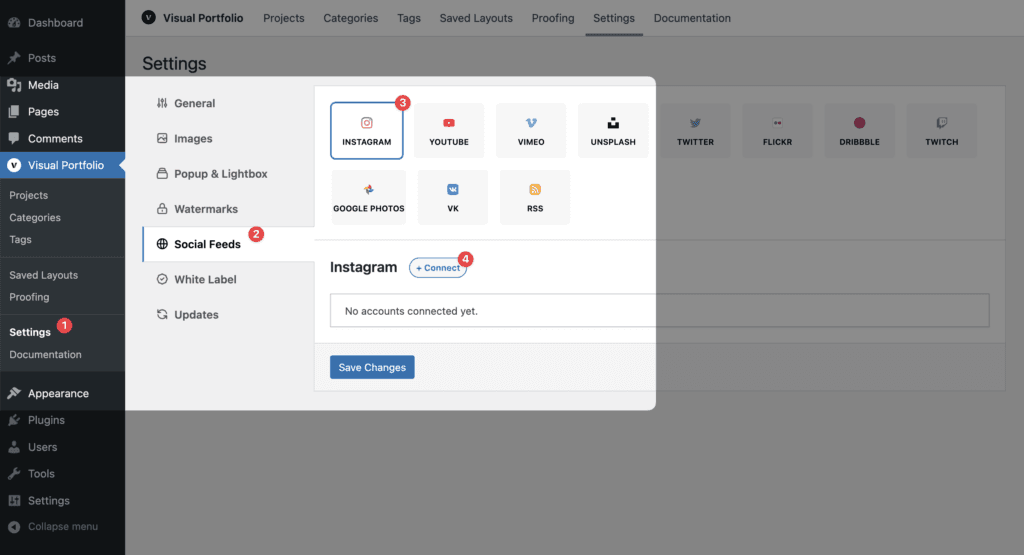
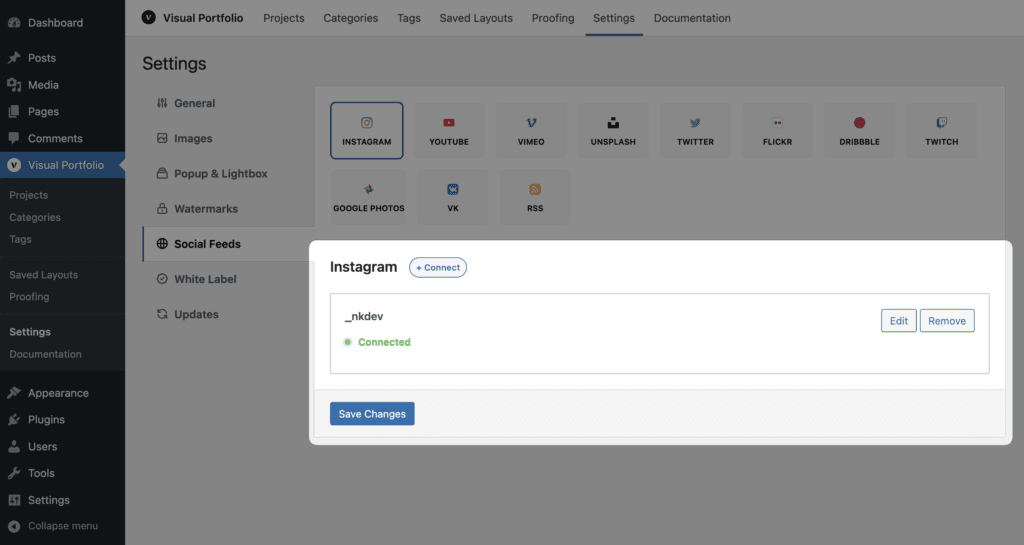
Until the import has finished the block shows “No items were found matching your selection.” Check Visual Portfolio → Social Items to see what has arrived, or click Sync All Accounts there to run the import now.
What you get in the block
- Image, title and description of the post, its date, the author (avatar and name) with a link to the profile.
- Comments count for YouTube, Vimeo and Flickr; views count for YouTube and Flickr. Likes are not shown.
- Click action URL opens the original post; Popup opens the image or plays the video in the lightbox.
- Order by date or title. No categories: the Filter element shows only “All”.
- Instagram: an optional profile header above the gallery (photo and username).
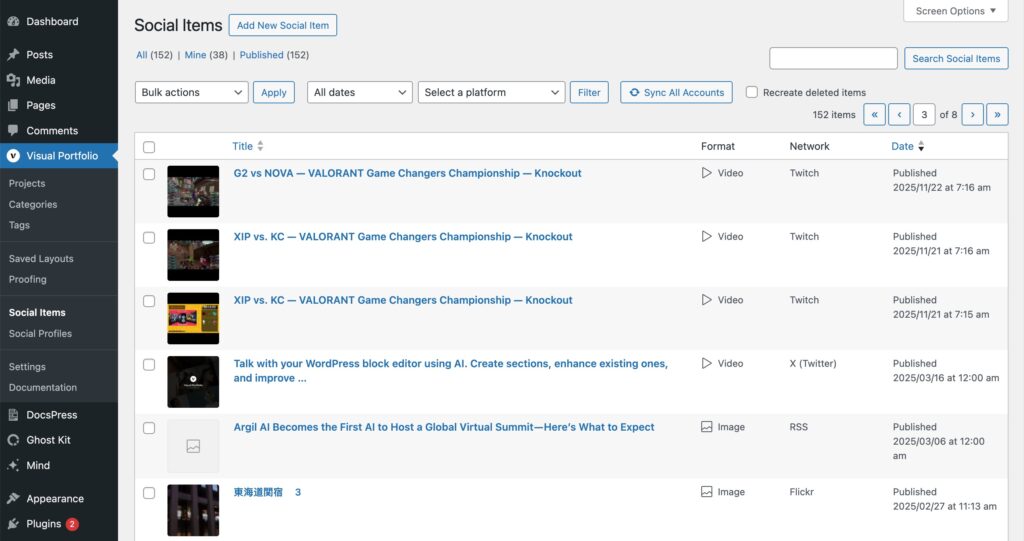
Imported posts in the admin
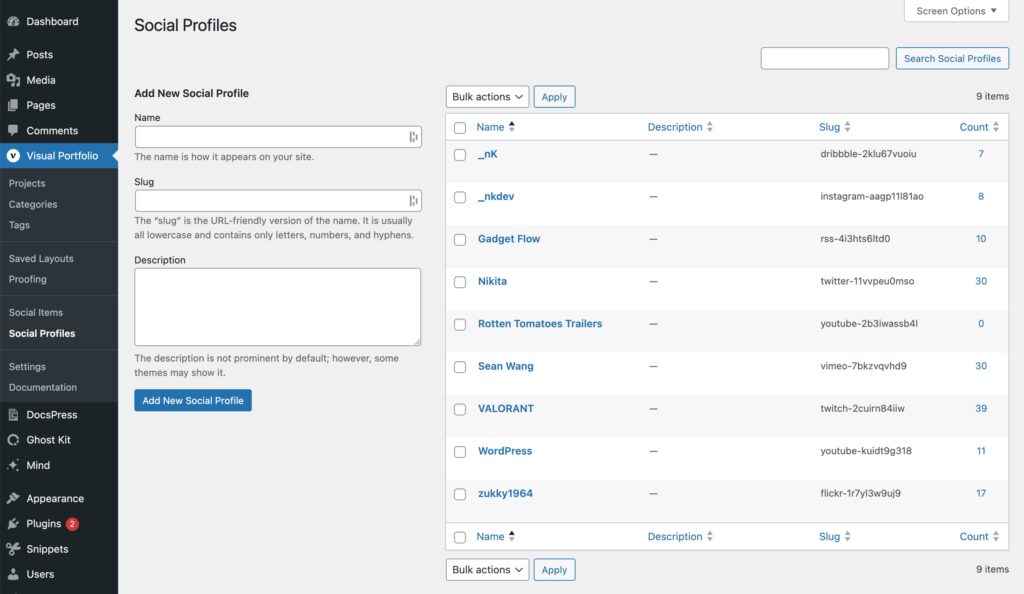
Imported posts are listed under Visual Portfolio → Social Items, and the connected accounts under Visual Portfolio → Social Profiles. See Social Items and Profiles.
Keep reading
- How social feeds work: storage, sync, media, what updates and what does not.
- Social Items and Profiles: managing imported content.
- Settings → Social Feeds: the connection screen.
- CRON: making the sync reliable.
- One page per network with the exact fields.
- Social feeds troubleshooting.