Show animated captions in a masonry WordPress gallery to highlight project details without cluttering images.
Body Flexibility of Ballet Performer
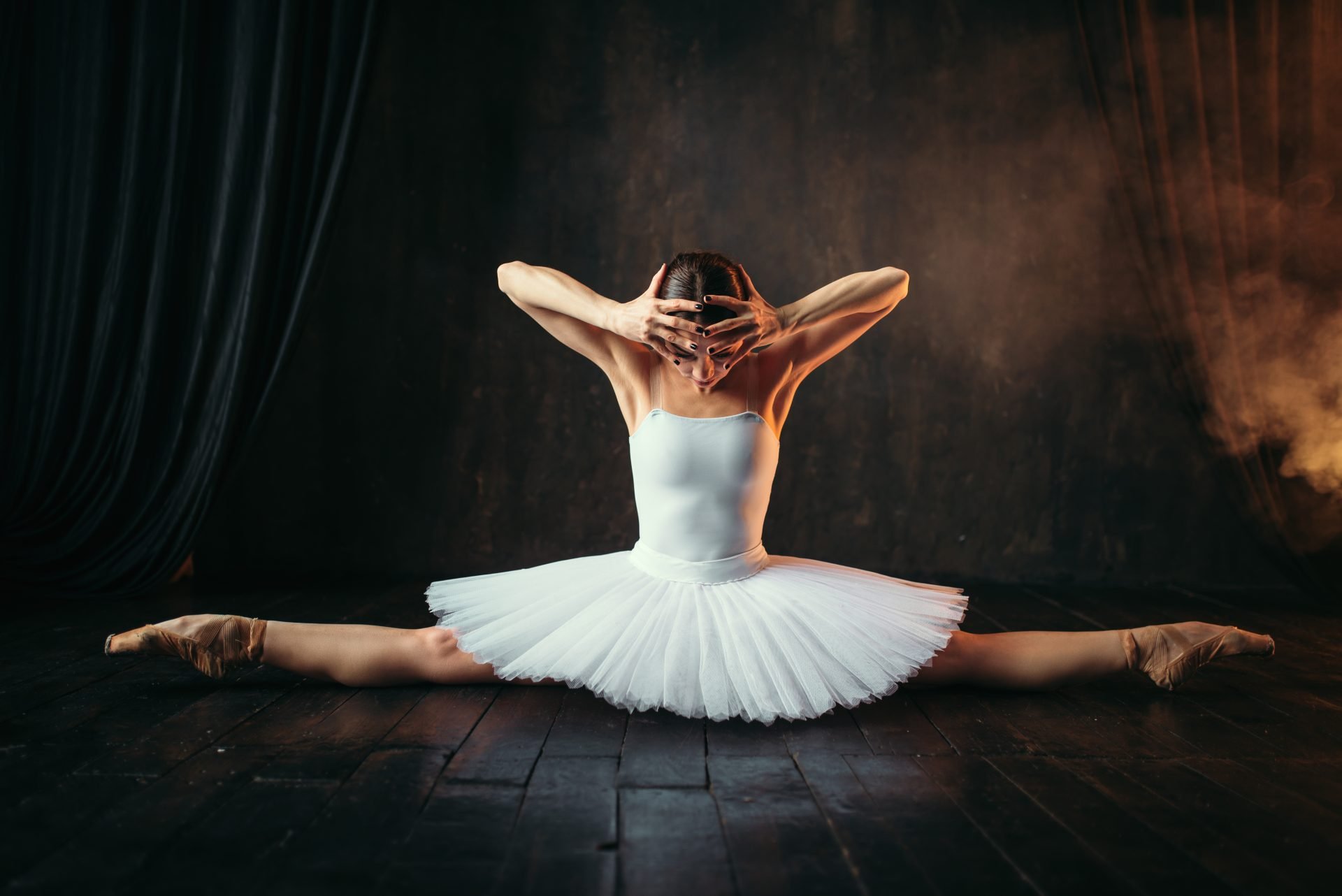
Beautiful Ballet Dancer in Pointe Shoes and Black Tutu
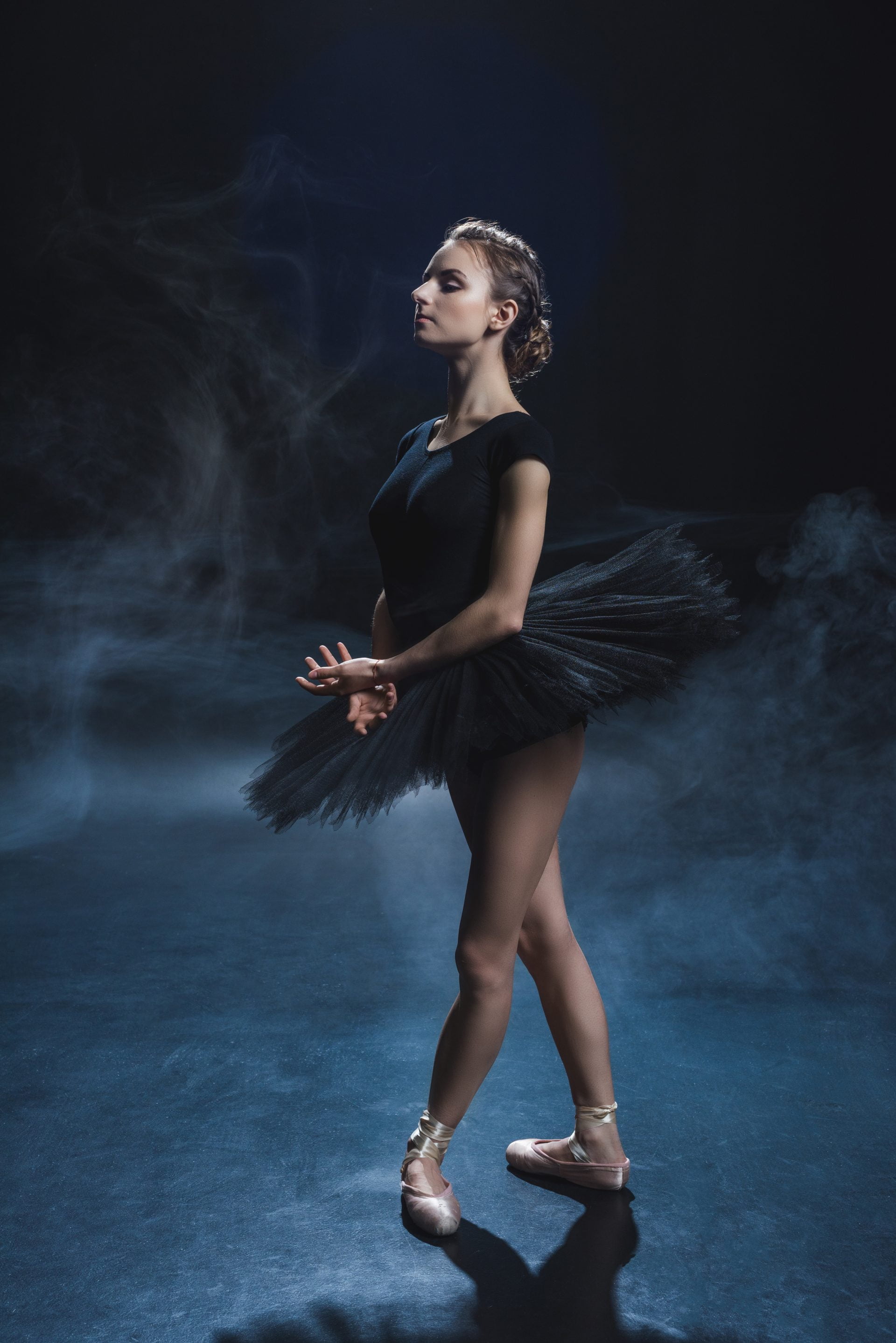
Young Beautiful Modern Style Dancer
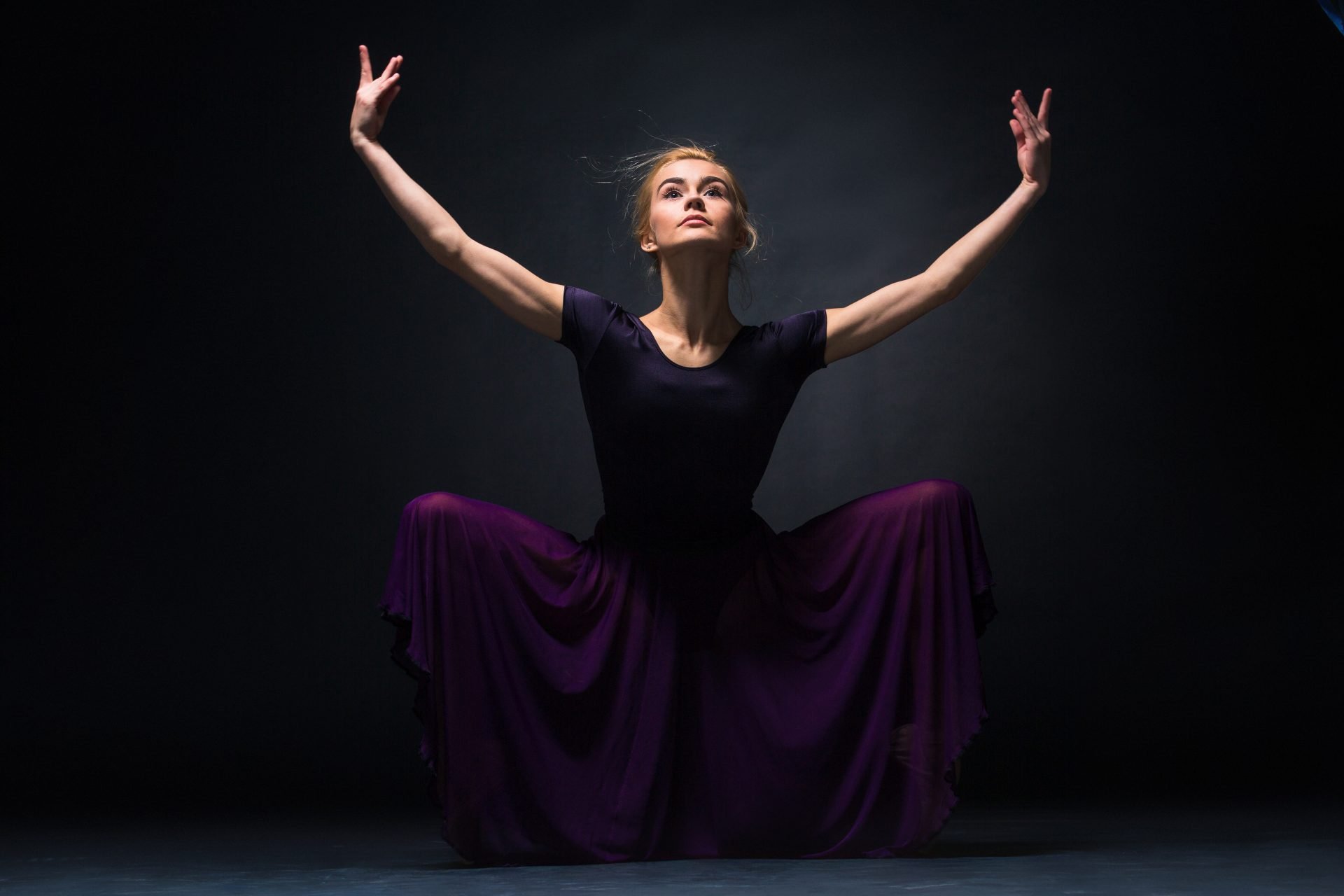
Young Beautiful Ballerina on Smoke Stage
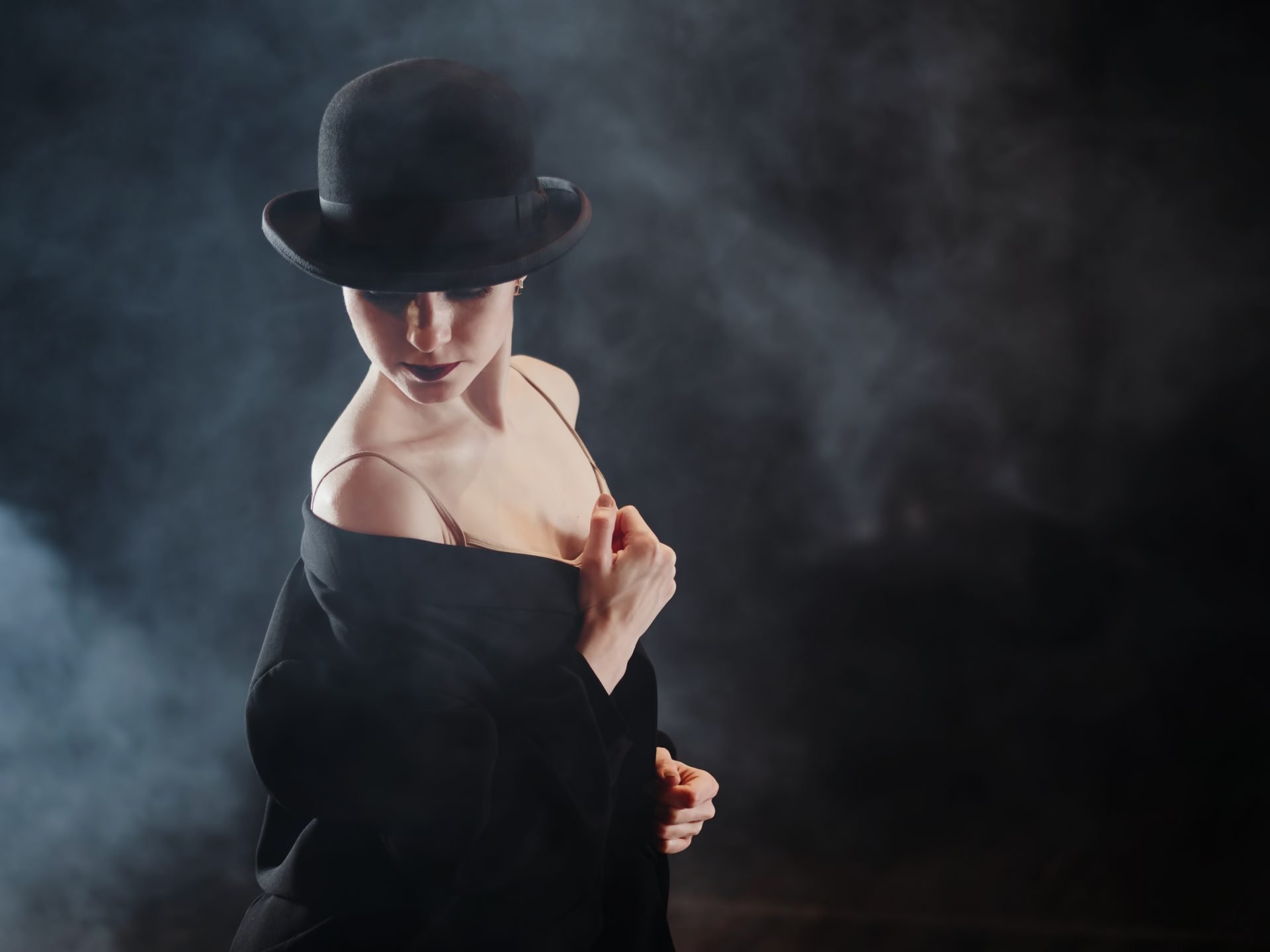
Woman Corrects Her Pointe Shoes
Tying Pointe Shoes
Elegant Ballerina Sitting on Twine
Portrait of the Ballerina in Ballet Tatu
Female Ballet Dancer Legs in Pointes

Elegant Ballet Dancer in Studio
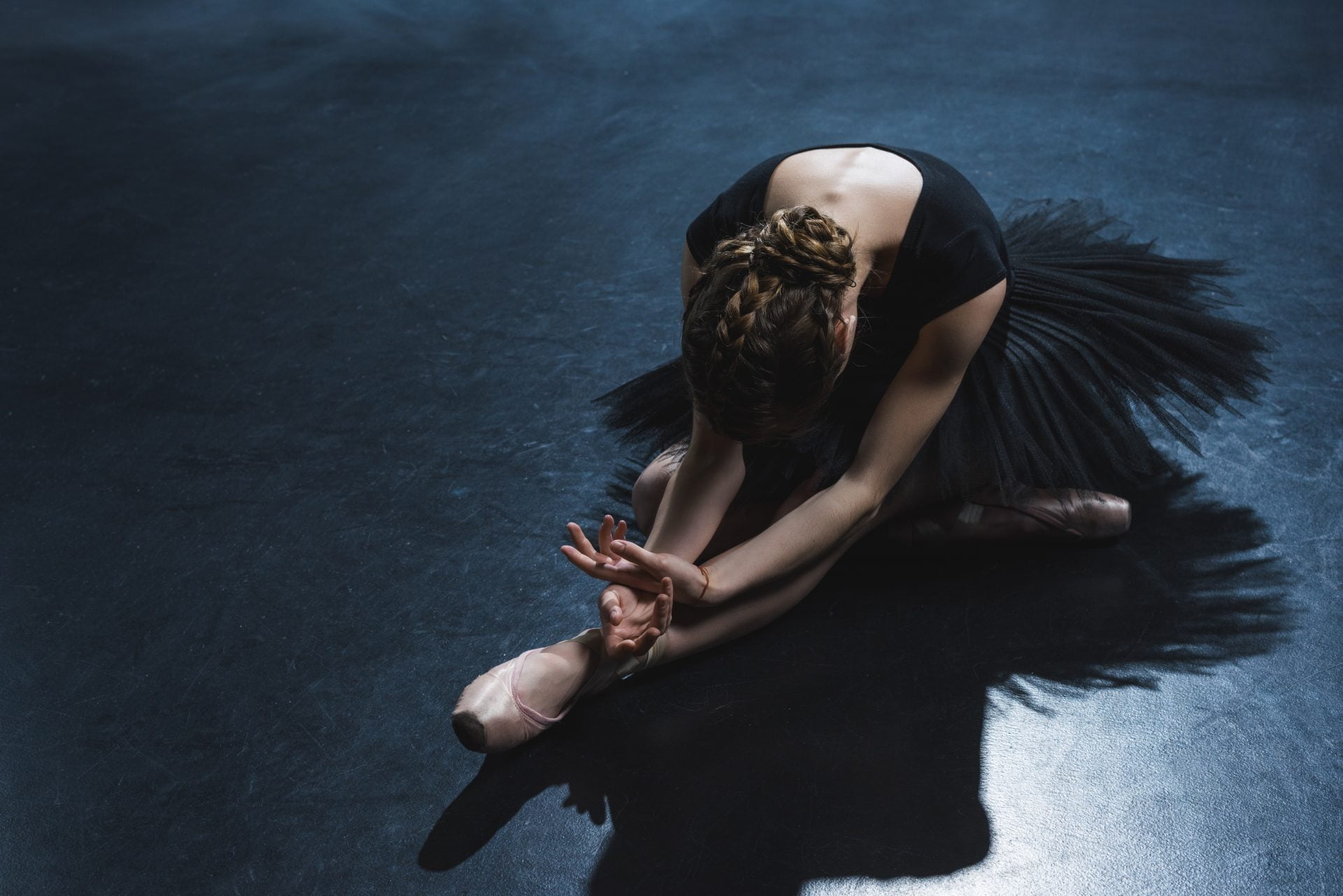
Elegance Ballerina in Action on Theatrical Stage
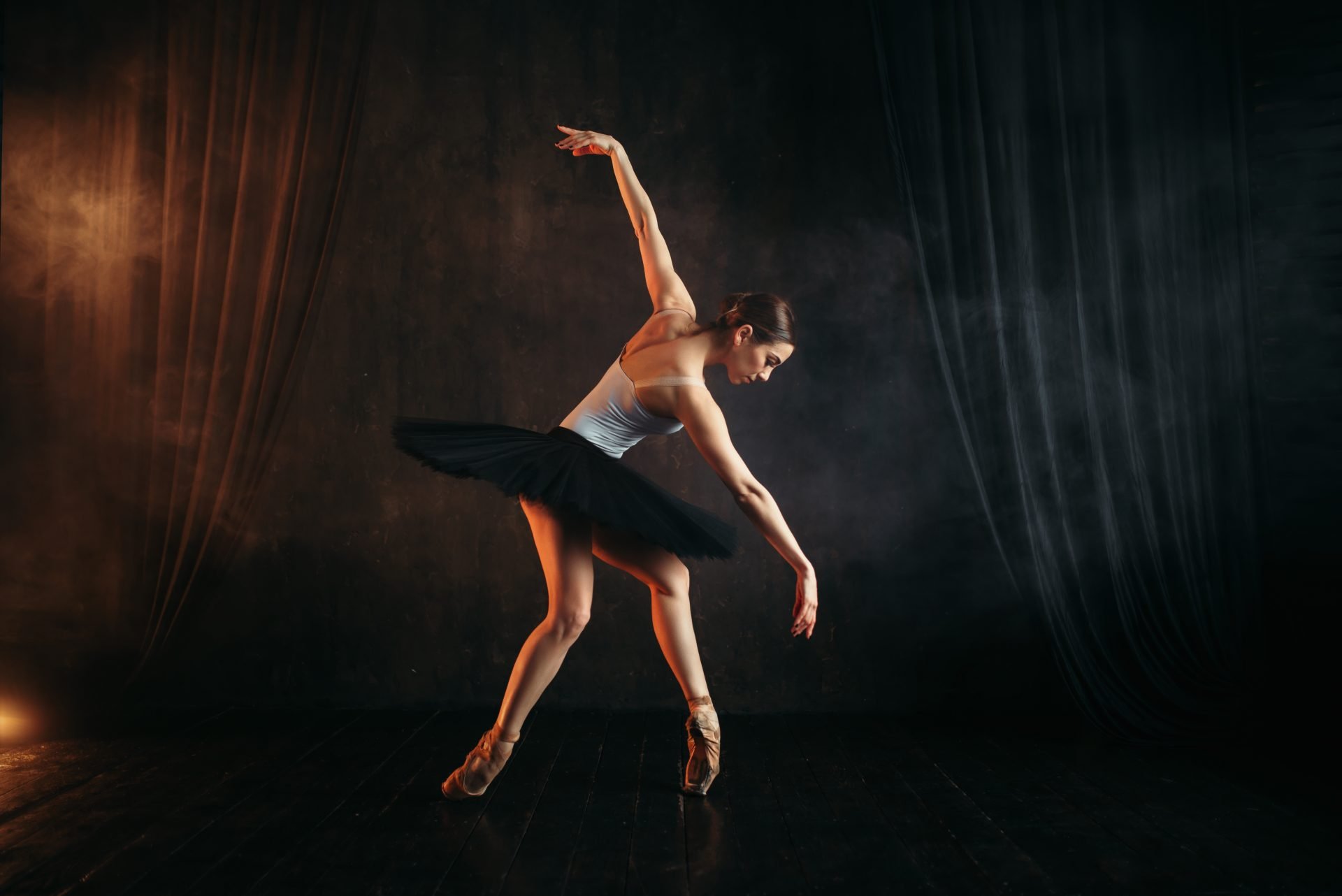
Classical Ballet Dancer in Motion on the Stage
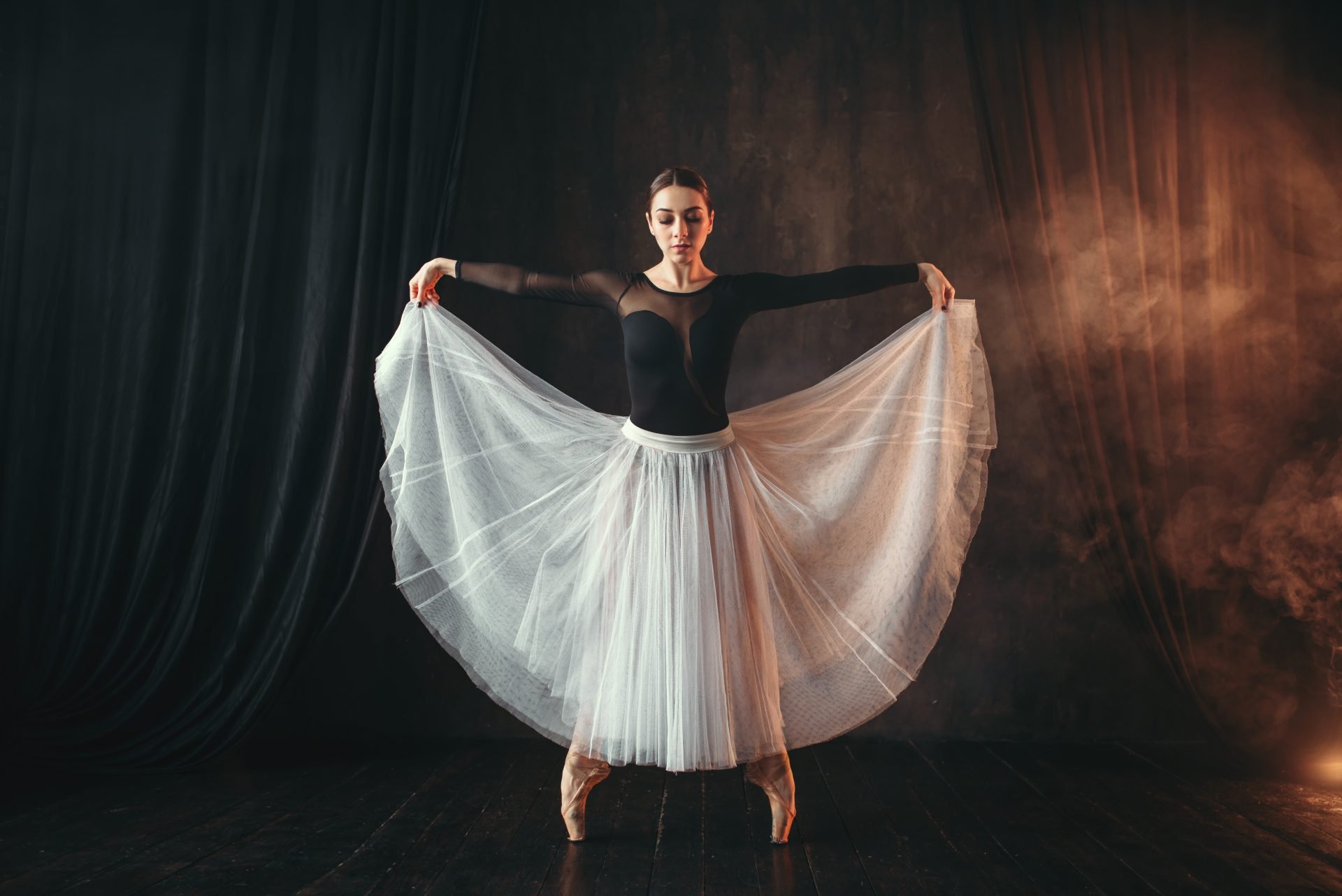
What a caption that follows the pointer does
In the Skin selector the Caption Move skin is called C.Move. Choose it and the caption leaves the layout. The title and whatever else you switch on go into a small box that follows the pointer, stays inside the viewport, and fades out when the pointer leaves. An overlay tint and an icon can sit under it. Until someone points at a picture, nothing is drawn over it.
Classic is the usual alternative. It prints the caption in a block under the image, which makes every column taller and keeps the text on screen. Emerge lifts that same block over the bottom edge on hover. The click target differs too. Classic and Emerge make the title a link along with the image, while C.Move disables links inside the floating box, so the image is the only thing to click.
The caption tab, field by field
The gallery above runs twelve images with categories switched off, so the box carries a title and nothing else. Columns and gaps live in Layout, not here.
- Elements decides what the box holds. Display Title is on and Title Tag is h2. Display Categories is on as well, but Categories Count starts at 1, so an image tagged three ways still shows one.
- Text Align takes Left, Center or Right. It starts on Center.
- Colors holds Background, Text and Blend Mode. Blend Mode is the box’s CSS mix-blend-mode, sixteen values, Normal by default.
- Dimensions covers Padding at 1.5em 2em, Items Gap at 1.5em, and a Border Radius field.
- Move Caption Under Image is the touch-screen fallback. Leave it on Keep Default Caption, or pick one of the five breakpoints at 320, 576, 768, 992 and 1200 px.
- The Overlay tab has its own Background and Blend Mode, plus Display at Hover State Only and Display Icon off.
- In Layout, masonry gives Columns 1 to 5 with 3 selected, and Gap 0 to 200 px with 15. Vertical Gap is left empty.
Picking C.Move in three steps
- Add the Gallery block and choose Media as the content source. Click Add Media, select your images, then Select. Clicking an image in the list underneath opens its Media Settings, where Title, Description and Categories are typed.
- In Layout choose Masonry and set Columns. In Skin choose C.Move, the one skin the free plugin does not carry. A Caption tab appears beside Image and Overlay.
- Click Action starts on URL, which sends a click to the image file. Switch it to Popup and set the Title Source and Description Source the lightbox reads. Add a Filter element and change its Style from Minimal to Dropdown, as this demo does.
Where the license line falls here
Everything around the skin is free. A plain masonry gallery with a dropdown filter and a popup costs nothing, and four of the five skins are in the free plugin. C.Move is the fifth. Pro contains the free plugin rather than installing on top of it, so this is one plugin, not two.
- Free: the masonry layout, the Media Library source, image categories and the filter, the popup gallery, and the Classic, Fade, Fly and Emerge skins.
- Pro: the Caption Move skin, plus Typography, Dimensions, Blend Mode and Move Caption Under Image, which carry a Premium Only note on the free skins too.
The whole split is in the free versus Pro table, and the terms are on the pricing page.
What people ask about moving captions
Does the floating caption show on a phone?
No. A touch screen has no pointer for the box to follow, so it is never drawn, and unlike Emerge this skin has no Caption Display setting to force it on. Move Caption Under Image is the answer. Below the width you choose, the text is rendered under the picture and stays there. On the other skins you set Overlay Display to Always, as the FAQ on hover effects on phones explains.
Which text ends up in the caption?
The item Title and Description. What fills those is Items Title Source and Items Description Source in Media Settings, and both start on Custom, meaning the text you typed into the block. The Media Library titles and captions entry lists the other four values. Pick one and the item reads the attachment at render time, so an edit in the Media Library reaches every gallery built on that file.
Can I restyle the caption box?
Within the panel, up to a point. Background, Text and Blend Mode are under Colors, fonts under Typography, padding and Items Gap under Dimensions. Past that you are in Custom CSS, where the plugin’s own CSS variables are the short route. The answer on fonts, colors and spacing has an example.