Send a client the shoot, let them tick the frames they want, and get the approved list back in an email. No second service, no account for the client to create.
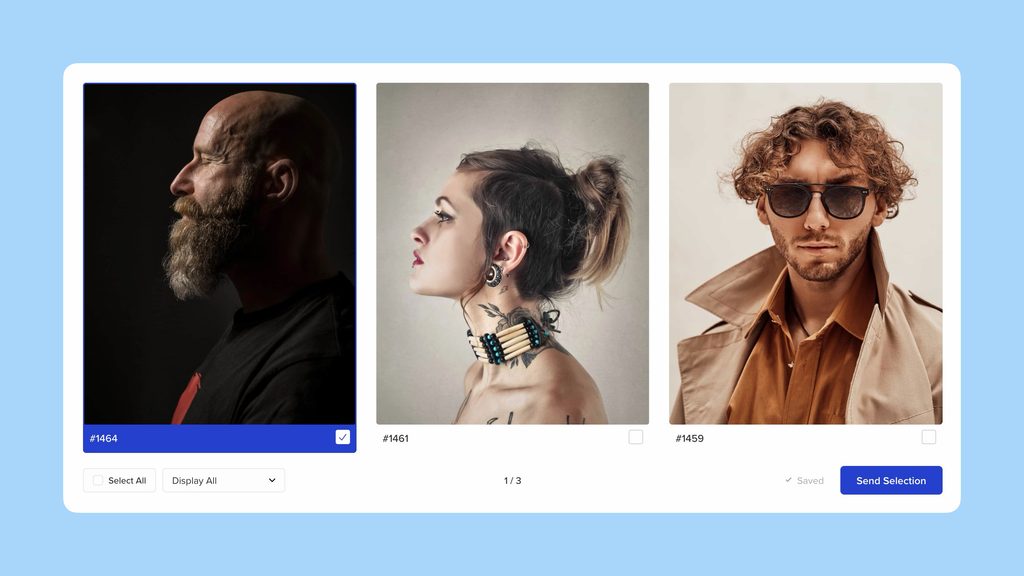
What a proofing gallery is
Proofing galleries are their own post type, under Visual Portfolio → Proofing, and they sit at /proofing/gallery-name/ on the site you already run. Each one carries a title, a body, comments, an optional password and a single gallery block that is locked into place. The photos stay in your Media Library.
It is a different job from a locked gallery. Password protection hides a set until someone types the word, and stops there. Proofing puts a decision in front of the client and records the answer.
The live example opens with the password demo.
What the client does
Every photo carries a label and a checkbox. The label is the item ID to begin with, and the Item Label control swaps it for the filename, the title or the description, whichever name the studio already uses when it talks about a frame. Ticks are saved as the client goes, so a closed tab loses nothing.
Comments are on, and the same label works inside them. A client writes “The photo #1467 is beautiful” and the note stays attached to the frame it is about.
One press sends the selection. The gallery moves to Approved, the checkboxes stop responding, and you get an email with a link to the chosen set and the file names ready to copy. Nobody rewrites a selection after the retouching has started.
Building one, start to finish
- Go to Visual Portfolio → Proofing → Add New Proofing Gallery. The editor opens with the block already set up for the job: Media source, every item on one page, Masonry at a 20 px gap, the Emerge skin with 5 px corners, a popup click action and watermarks on. The block cannot be moved or removed, and its settings are still yours to change.
- Click Edit Gallery in the block and choose the photos.
- Open the Proofing Settings panel. Set the minimum selection, which starts at 1, and the maximum, where an empty field means no ceiling. Fill in the client’s email address and the message that travels with the link.
- Set a post password in the Publish panel if the link may travel further than one inbox, then publish and send.
A client who tries to send fewer photos than the minimum is told so before the email goes anywhere. Past the maximum, the next checkbox refuses.
Watermarks come switched on
The proofing block turns Add Watermarks to Photos on the moment the gallery is created. What the client sees, saves or screenshots is the watermarked copy, and the original never leaves the server. Generate the copies once in the Watermarks settings and every proofing gallery uses them.
Right Click Protection can go on top of that, which removes the context menu and the drag. It raises the cost of a casual save rather than making one impossible.
Free and Pro
Everything that draws the gallery is free. Proofing is not. Pro carries the free plugin inside it, so it is one plugin either way. The whole split is in the free versus Pro comparison, and the license tiers are on the pricing page.
- Free: the Gallery block, the Tiles, Masonry, Grid, Justified and Carousel layouts, the Classic, Fade, Fly and Emerge skins, the lightbox, AJAX filter, sort and pagination.
- Pro: proofing galleries, the selection limits, the client message, the approval email and the copyable file names.
- Pro: watermarks, password protection, the age gate and right click protection.
- Pro: taxonomies and social feeds as content sources, AJAX search, deep linking and white label.
Questions people ask
Are proofing galleries password protected?
Only when you give one a password. The post type supports the WordPress post password and the Publish panel is where it goes. Without one, the address is the only thing between the photos and anyone holding the link, which is fine for a client who will not forward it and not fine for one who might.
Can a client change a selection after sending?
Not on their own. Sending moves the gallery to Approved and the checkboxes stop responding. Set the status back yourself in the Proofing Settings panel when a client asks for another pass.
How many photos can a client pick?
Between the minimum and the maximum you set on the gallery. The minimum starts at 1 and an empty maximum means no limit. Both are checked in the browser before the selection is sent, so a client sees the message rather than an error.
Where are the full settings documented?
In the proofing documentation, which covers every field in the panel, the email templates, the status reference and what to check when a selection does not save.