
Table of Contents
To showcase a collection of posts, images, videos, or portfolio items on your page, simply add a Visual Portfolio block to your content. Various settings in these blocks allow you to customize your gallery according to your needs.
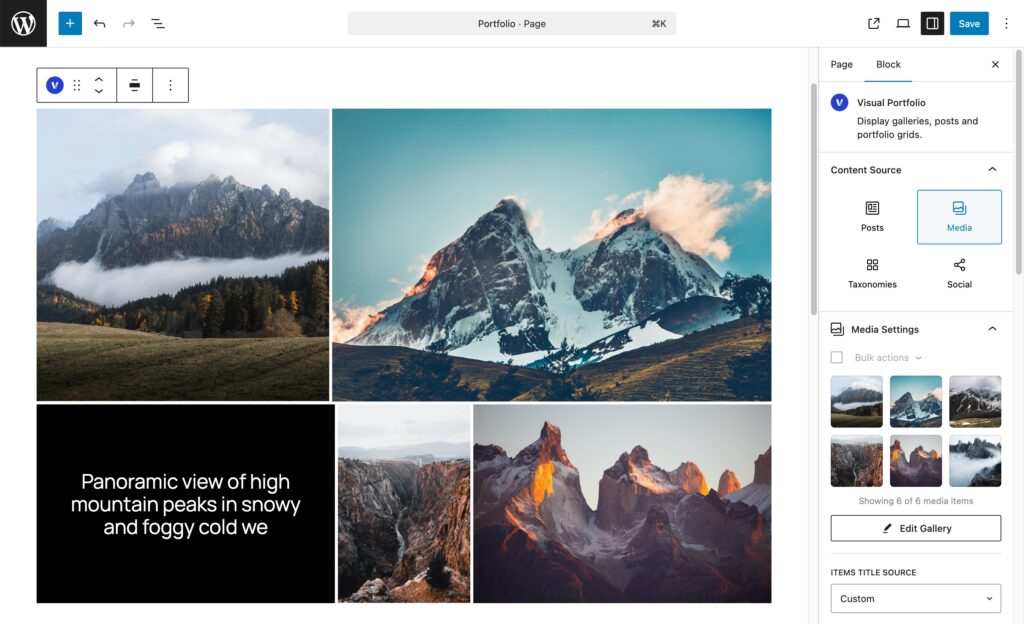
These versatile blocks provide a variety of display options, including masonry galleries, tile arrangements, and sliders, allowing you to create a truly unique and engaging presentation. Explore some examples here. Customize your chosen layout and fine-tune its settings to achieve the perfect look and feel for your portfolio.
Adding a Visual Portfolio Block
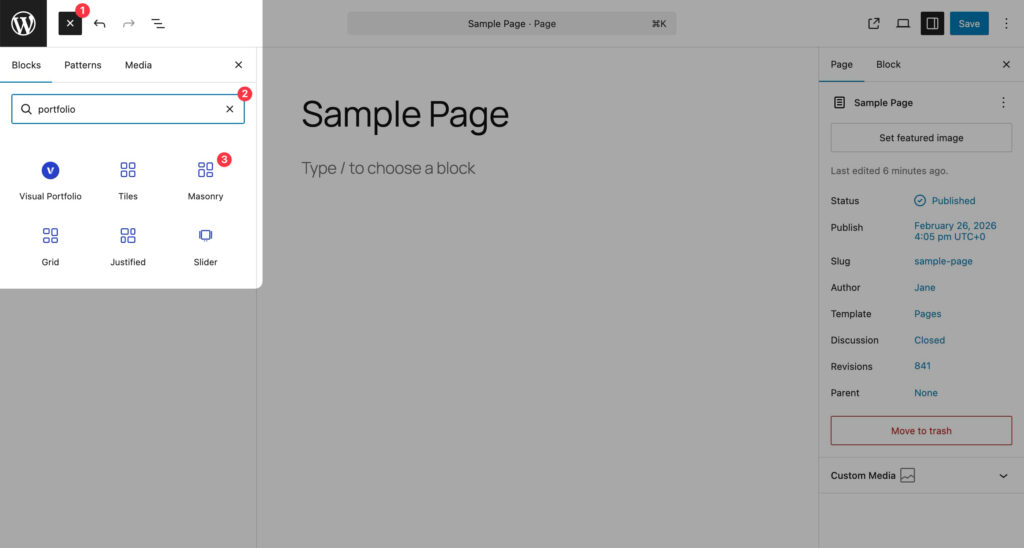
- In the WordPress block editor, click the + icon to add a new block
- Search for Visual Portfolio and select the block
- The block will be added to your page, ready for customization
Key Components of Gallery Blocks
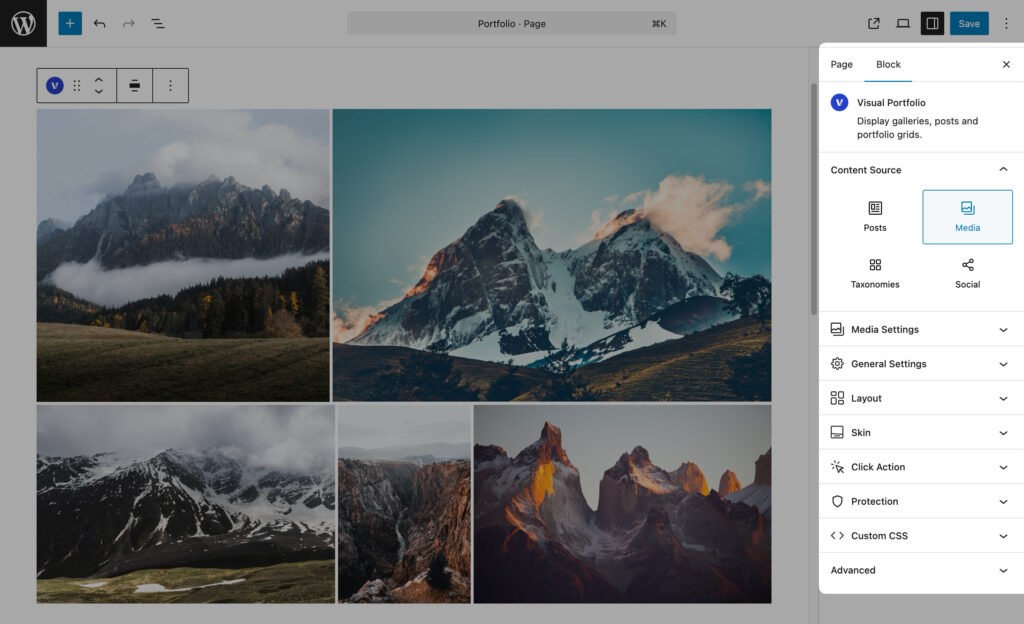
Content Source
These settings allow you to select where the gallery will load items from. The available options are:
- Posts
Display blog posts, projects, or any public post type and control the output using post type, taxonomy, author, date, and manual selection settings. - Media
Build a gallery from items in the Media Library. Supports images, local videos, media formats, albums, hover media, and advanced item controls. - Taxonomies Pro
Display taxonomy terms such as categories, tags, and custom taxonomies as gallery items with their own thumbnails, descriptions, and archive links. - Social Pro
Connect social accounts and display imported social content in your galleries.
Layouts
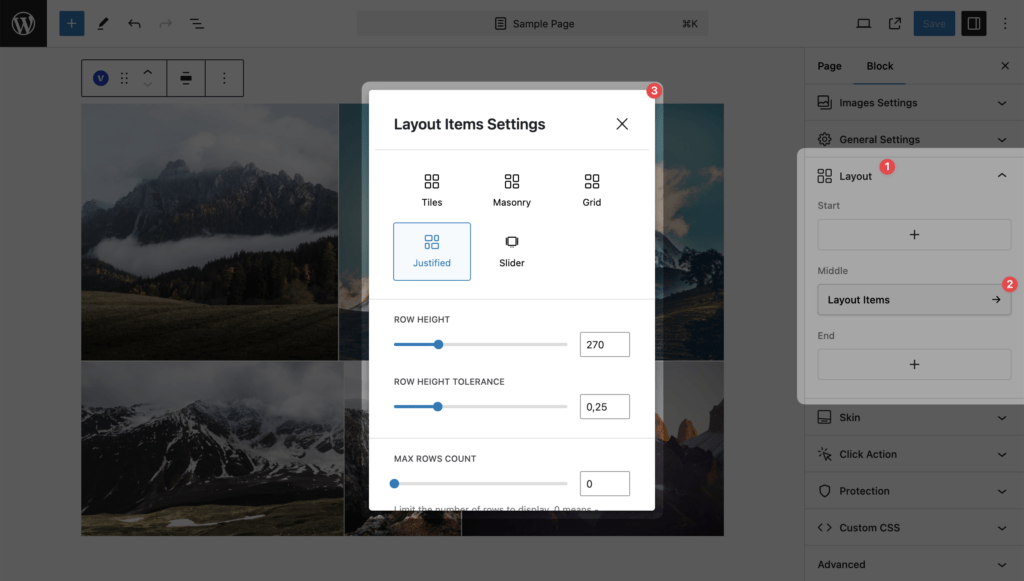
There are different variations to organize your gallery items based on the selected layout:
Skins
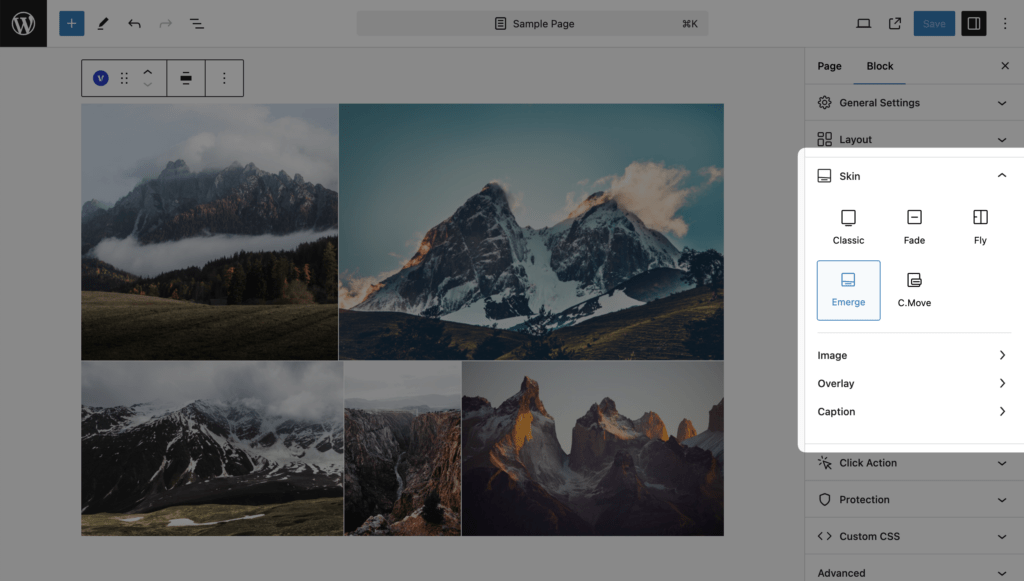
These settings allow you to choose how the gallery items will be displayed. Each skin provides a different visual style and hover effects. The predefined skins include:
- Classic
- Fade
- Fly
- Emerge
- Caption Move Pro
Layout Elements
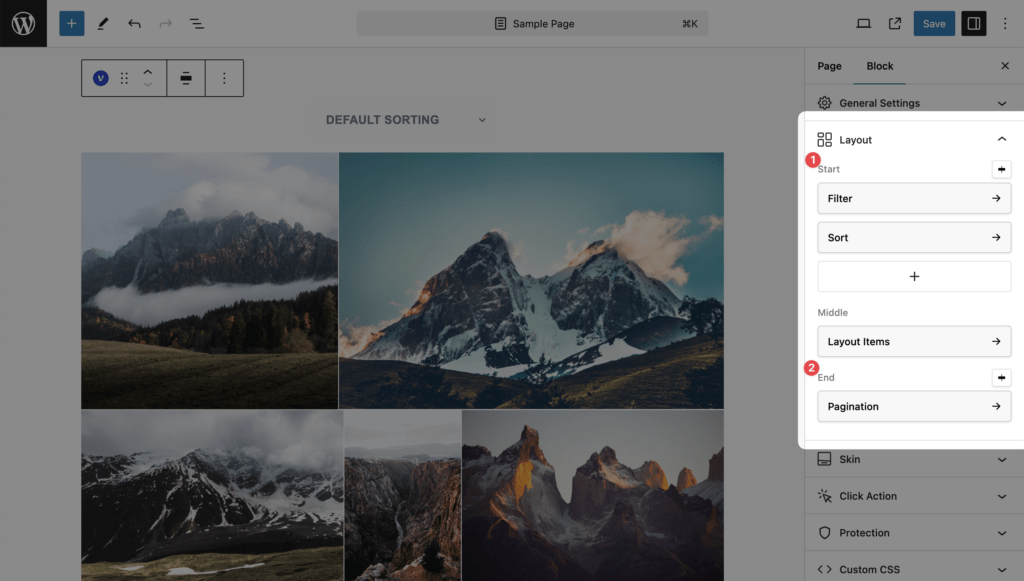
Control the gallery output with these available layout elements:
- Filter: Enable users to filter gallery items.
- Sort: Allow sorting of the gallery items.
- Search Pro: Add a search function to find specific items.
- Pagination: Split your gallery into multiple pages.
Additional Options
Customize your gallery further with additional features:
- Click Action: Define what happens when a user clicks on a gallery item.
- Protection Pro: Protect your galleries, such as NSFW, watermarks, private galleries, with a password, etc…
- Custom CSS: Provide visual customizations on a per-block basis.
Pro Tips for Using Gallery Blocks
- Mix and Match: Experiment with different combinations of layouts, skins, and content sources to find the perfect presentation for your work.
- Responsive Design: Test your galleries on various device sizes to ensure they look great everywhere.
- Performance: Optimize your images and use lazy loading for better page performance.
- Consistency: Try to maintain a consistent style across your galleries for a cohesive site look.
- Regular Updates: Keep your galleries fresh by regularly adding new content or rotating featured items.
Conclusion
Visual Portfolio’s gallery blocks offer robust customization options to showcase your content effectively. Experiment with different content sources, skins, layouts, and additional options to find the perfect setup for your portfolio. Remember, the key to a great gallery is not just in the technical setup, but also in the quality and curation of your content.