
Table of Contents
Visual Portfolio → Settings → Popup & Lightbox. Settings of the lightbox that opens when a block’s Click Action is Popup. They apply to every Visual Portfolio block and to the “Lightbox for WordPress Images” feature.
General
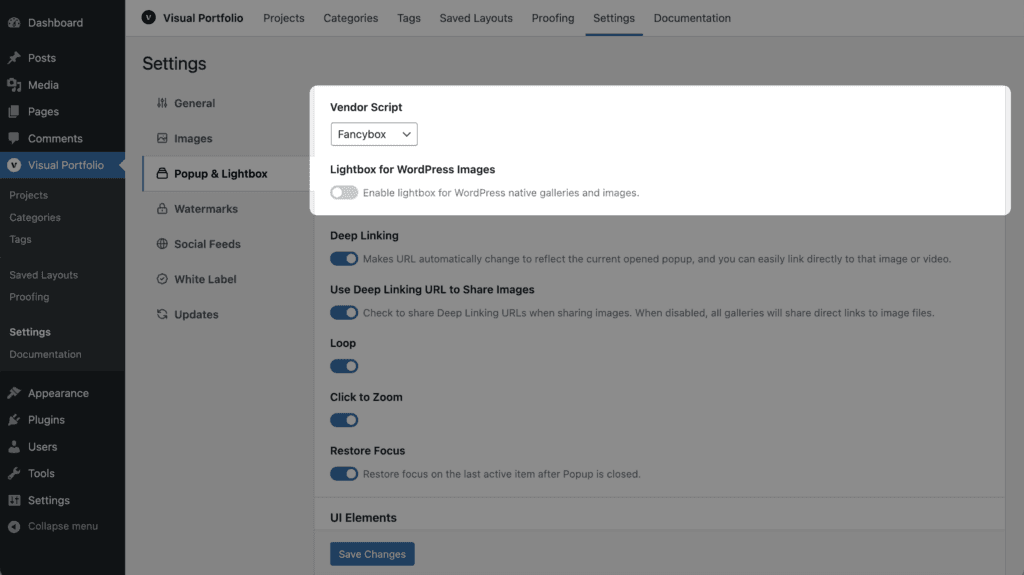
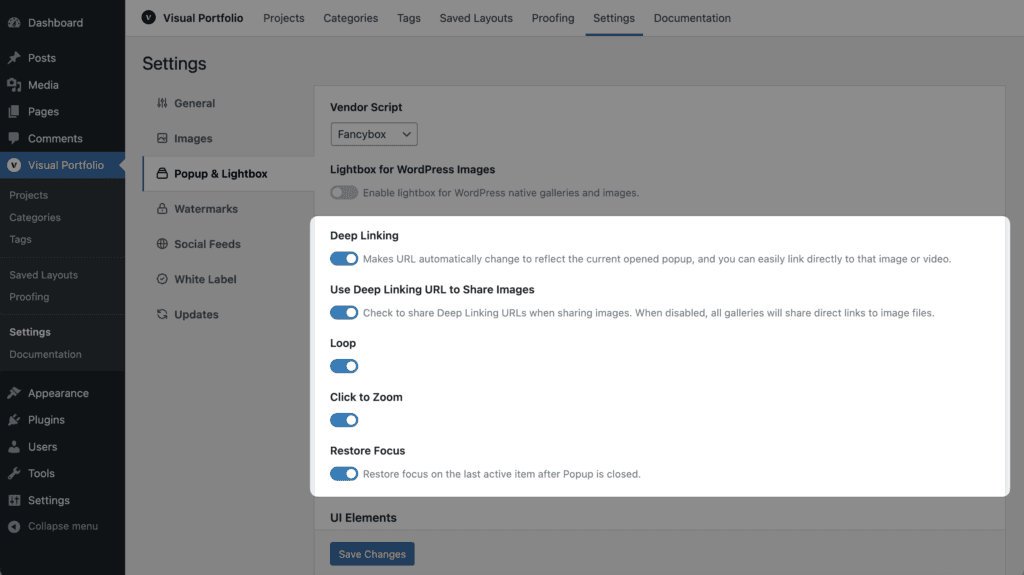
| Setting | Default | Notes |
|---|---|---|
| Vendor Script | Fancybox | Fancybox 3 or PhotoSwipe 4. Same features except where the table below says otherwise |
| Lightbox for WordPress Images | off | Opens the core Image and Gallery blocks, classic galleries and Jetpack tiled galleries in this lightbox. Any other markup gets it with the class vp-lightbox-gallery on the container (images linked to their files) or on a link |
| Deep Linking (Pro) | on | The address changes to #&gid=…&pid=… while a slide is open; Back closes the lightbox; the link opens that slide. See Click Action |
| Use Deep Linking URL to Share Images (Pro) | on | The Share button shares the deep link with the image’s title and preview (Open Graph tags). Off: the image file URL is shared |
| Loop (Pro) | on | Continue from the last slide to the first |
| Load Next Pages (Pro) | on | With Load More or Infinite pagination, load the next page of the gallery while browsing; the counter shows N+ while more pages exist |
| Click to Zoom | on | A click on the image zooms in |
| Restore Focus | on | Focus returns to the clicked item after closing (keyboard users) |
UI Elements
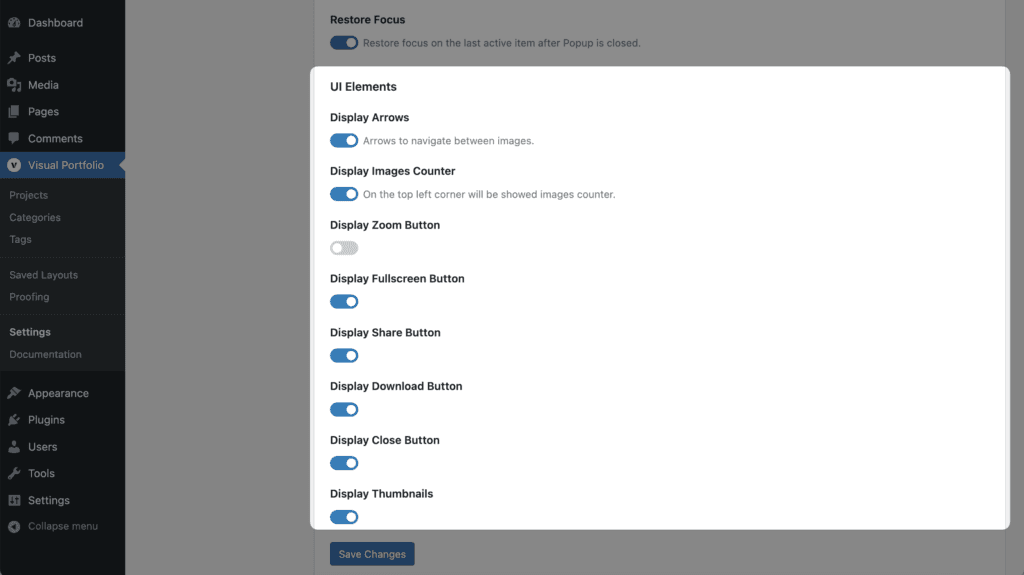
| Setting | Default | Fancybox | PhotoSwipe |
|---|---|---|---|
| Display Arrows | on | yes | yes |
| Display Images Counter | on | yes | yes |
| Display Zoom Button | on | yes | yes |
| Display Fullscreen Button | on | yes | yes |
| Display Share Button | on | Facebook, X, LinkedIn, Pinterest | same |
| Display Download Button | off | yes | yes |
| Display Close Button | on | yes | yes |
| Display Thumbnails | on | yes | not available |
| Thumbnails Opened At Startup (Pro) | off | yes | not available |
| Thumbnails Position (Pro) | Vertical | Vertical, Horizontal | not available |
| Display Slideshow | off | yes | not available |
Albums (Pro)
Pro Feature
This is a part of the Visual Portfolio Pro plugin.
Purchase the Pro plugin to access this and other advanced features.
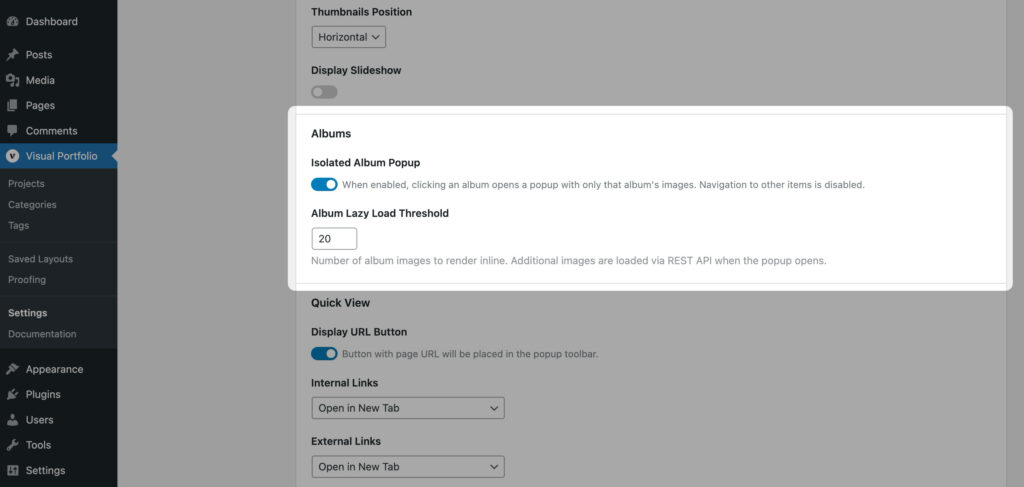
| Setting | Default | Notes |
|---|---|---|
| Isolated Album Popup | on | Clicking an album item opens only that album’s images. Off: the lightbox holds every item of the gallery, with album images inserted in place |
| Album Lazy Load Threshold | 20 (5 to 100) | Images rendered with the page; the rest are fetched from the REST API when the album opens |
These fields are part of the free plugin since 3.6.0 but only do something with Pro albums.
Quick View (Pro)
Pro Feature
This is a part of the Visual Portfolio Pro plugin.
Purchase the Pro plugin to access this and other advanced features.
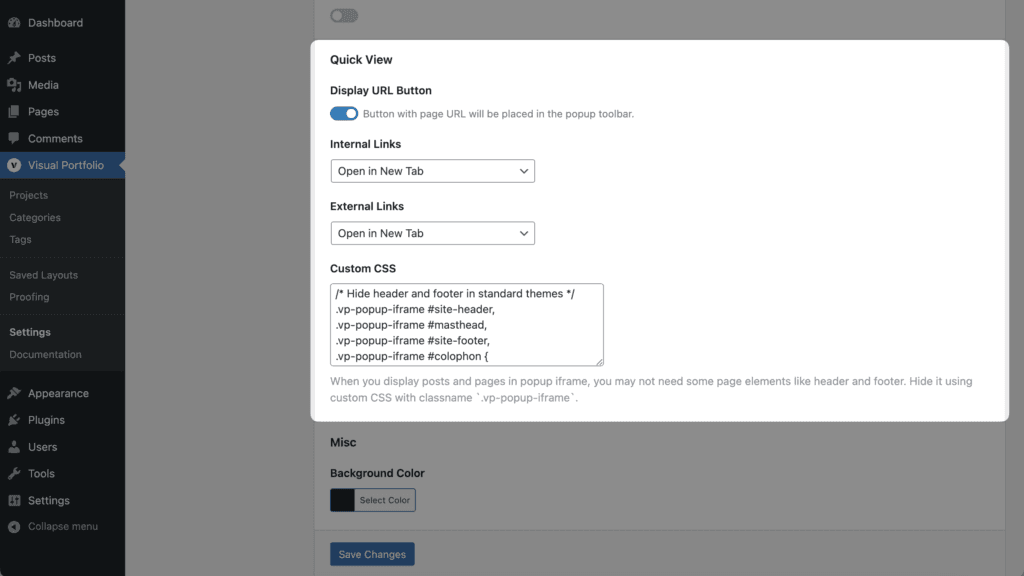
Quick View shows a post or page inside the lightbox as a frame. It is switched on per block with Post URL (Quick View) in Click Action → Media Object Priority.
| Setting | Default | Notes |
|---|---|---|
| Display URL Button | on | A toolbar button that opens the framed page in a new tab |
| Internal Links | Open in New Tab | What links inside the frame that point to your site do: Open in New Tab, Open in Current Tab, Open in Frame (not recommended), Prevent Click |
| External Links | Open in New Tab | Same for links to other sites |
| Custom CSS | Hides common header and footer selectors | CSS applied to the framed page. It gets the body class vp-popup-iframe, so .vp-popup-iframe .site-header { display: none } hides your header inside Quick View only |
Misc
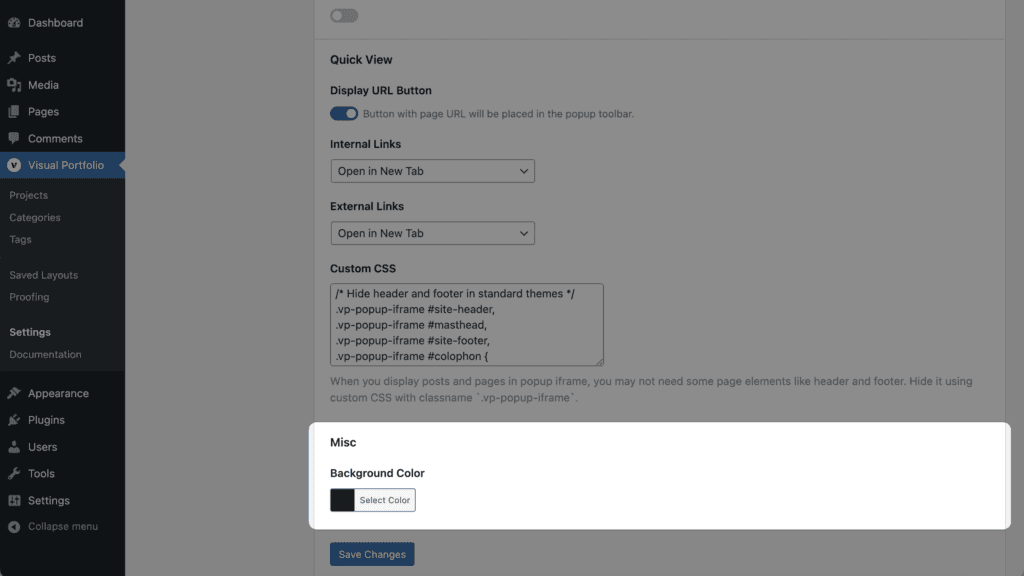
| Setting | Default |
|---|---|
| Background Color | #1e1e1e |
Notes
- Which image, title and description a slide shows is decided per block in Click Action.
- The lightbox uses the Lightbox Image Sizes from Settings → Images.
- If the site header appears above the lightbox, see Site header displays above Popup gallery.