
Table of Contents
Pro Feature
This is a part of the Visual Portfolio Pro plugin.
Purchase the Pro plugin to access this and other advanced features.
Proofing lets a client pick the photos they want from a gallery you send them. The client ticks photos, saves as they go, and sends the final selection. You get an email with a link to the approved set and can copy the file names in one click.
Proofing works with the Visual Portfolio block only.
See a live proofing gallery, or read what photo proofing galleries do before you set one up.
Where it is
Visual Portfolio → Proofing in the admin menu. Proofing galleries are a separate post type (vp_proofing) with the URL /proofing/gallery-name/. They support a title, content, the author, comments and a post password.
Create a proofing gallery
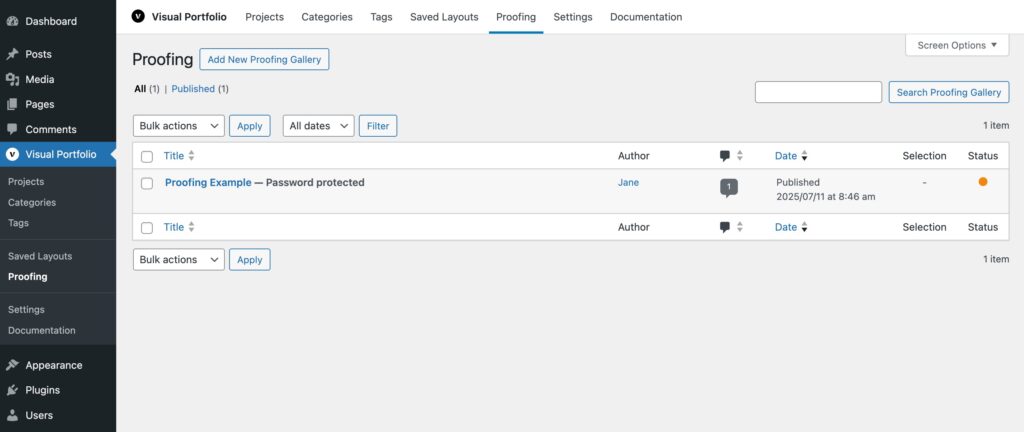
- Go to Visual Portfolio → Proofing → Add New Proofing Gallery.
- The editor opens with a locked Visual Portfolio block that is set up for proofing: Media source, all items on one page, Masonry layout with a 20 px gap, Emerge skin with 5 px rounded corners, click action Popup, watermarks on. You cannot move or remove this block, but you can change its settings.
- Click Edit Gallery in the block and pick the photos.
- Open the Proofing Settings panel in the document sidebar (described below).
- Optionally set a post password in the Publish panel. The client will need it to open the page.
- Publish.
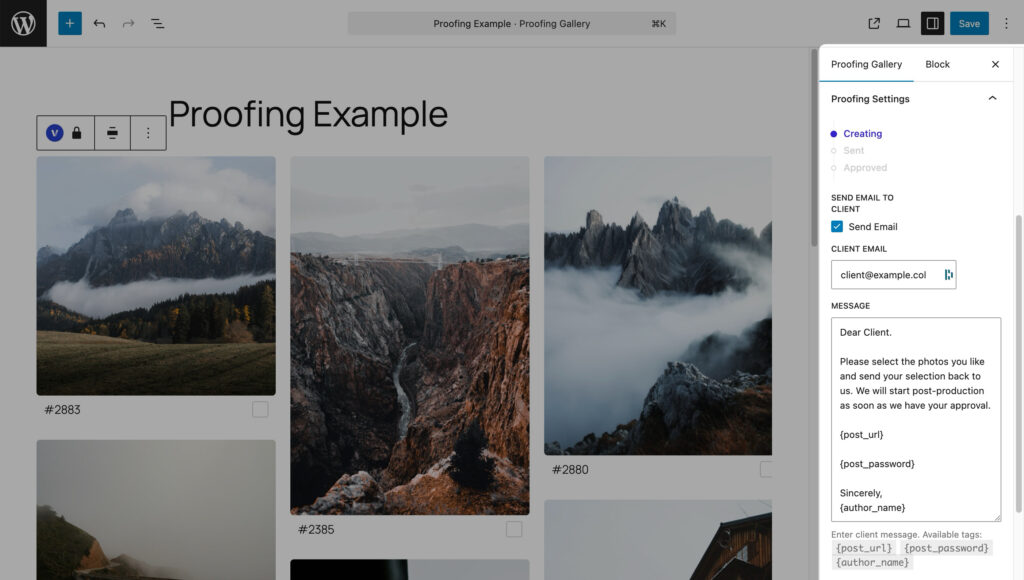
The block editor is used for this post type even when the Classic Editor plugin is active or the user has disabled the visual editor.
Proofing Settings panel
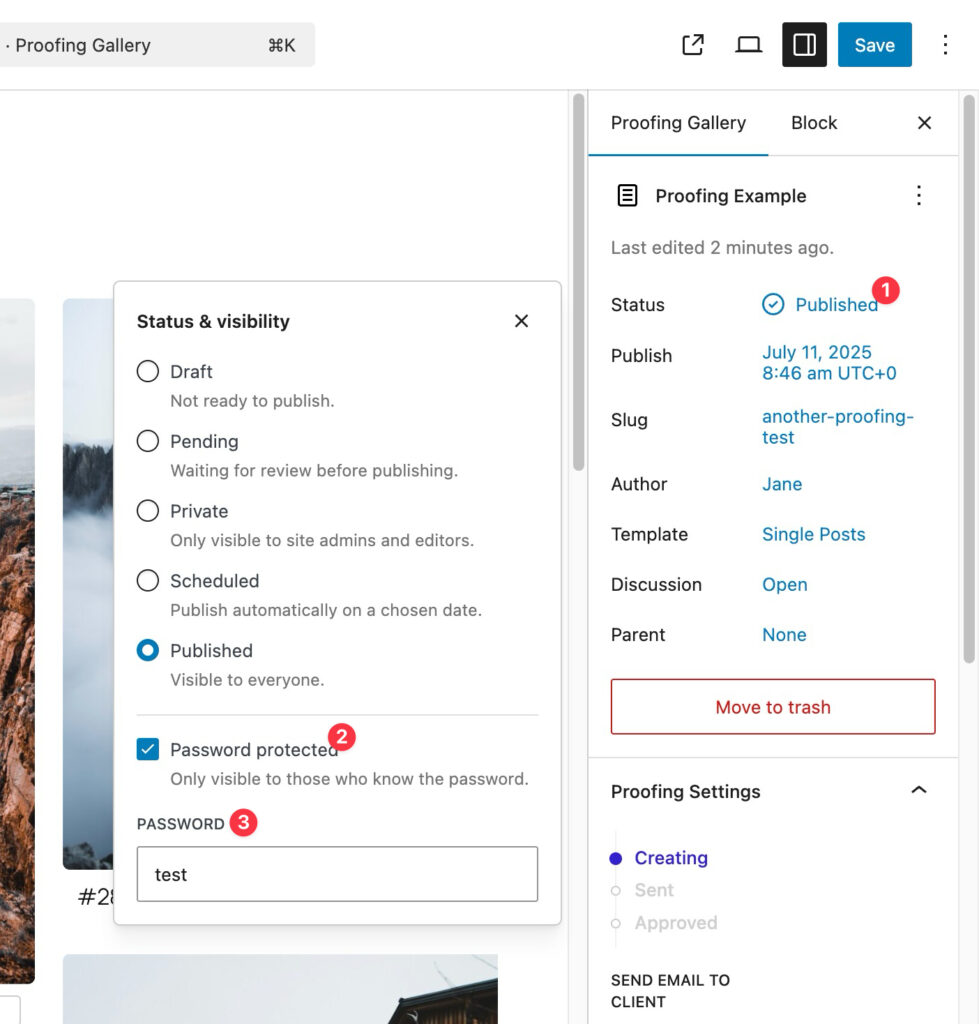
The panel shows a status stepper: Creating → Sent → Approved (the middle step reads Published when no email is sent).
While the status is Creating:
| Setting | What it does |
|---|---|
| Send Email | When on, publishing the gallery emails the client. When off, the gallery is published and you send the link yourself |
| Client Email | Required when Send Email is on. Saving is blocked with the notice “Please enter Client Email” until it is filled |
| Message | The email body. Tags you can use: {post_url} (rendered as a “View Photos” button), {post_password} (rendered as “Password to access the post:” followed by the password, only when the post is password protected; otherwise the tag is removed), {author_name} (the author’s display name). Default text: “Dear Client. Please select the photos you like and send your selection back to us. We will start post-production as soon as we have your approval. {post_url} {post_password} Sincerely, {author_name}”. Saving is blocked with “Please enter Client Message” when Send Email is on and the message is empty |
While the status is Creating or Sent:
| Setting | What it does |
|---|---|
| Minimum Selection | Photos the client must select before sending. Default 1 |
| Maximum Selection | Photos the client may select at most. Empty or 0 means no limit. When the limit is reached, the remaining checkboxes are disabled |
While the status is Sent the panel shows “The gallery has been sent to the client for approval.” (or “The gallery has been published, you have to send the gallery URL to the client for approval.” when no email was sent).
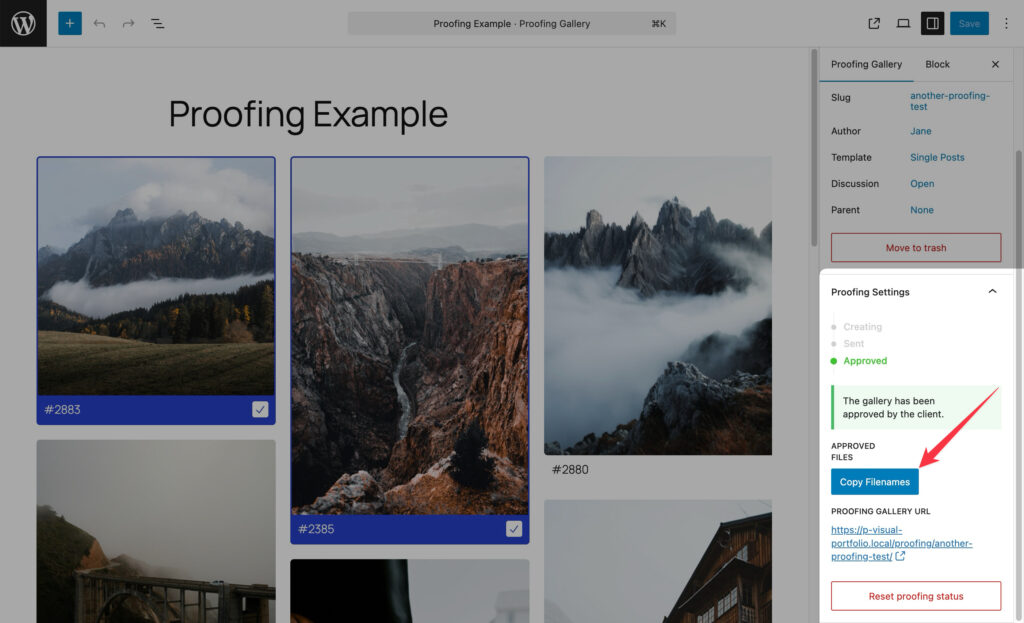
While the status is Approved the panel shows “The gallery has been approved by the client.” and an Approved Files section with a Copy Filenames button. It copies the file names of the selected photos, separated by spaces, so you can paste them into Lightroom, Capture One or a file manager.
Always visible: the Proofing Gallery URL link, and for Sent or Approved galleries the Reset proofing status button. Reset opens a dialog where you choose the status to go back to (Creating or Sent) and whether to Preserve approved selections. The change is applied when you click Save.
Item Label
In a proofing gallery the block’s Skin panel gets an extra setting, Item Label. It decides what clients see on each photo, in comments and in the copied file list:
- Item ID (default):
#followed by the attachment ID, for example#1523 - Filename
- Title
- Description
Titles and descriptions fall back to the file name when empty.
What the client sees
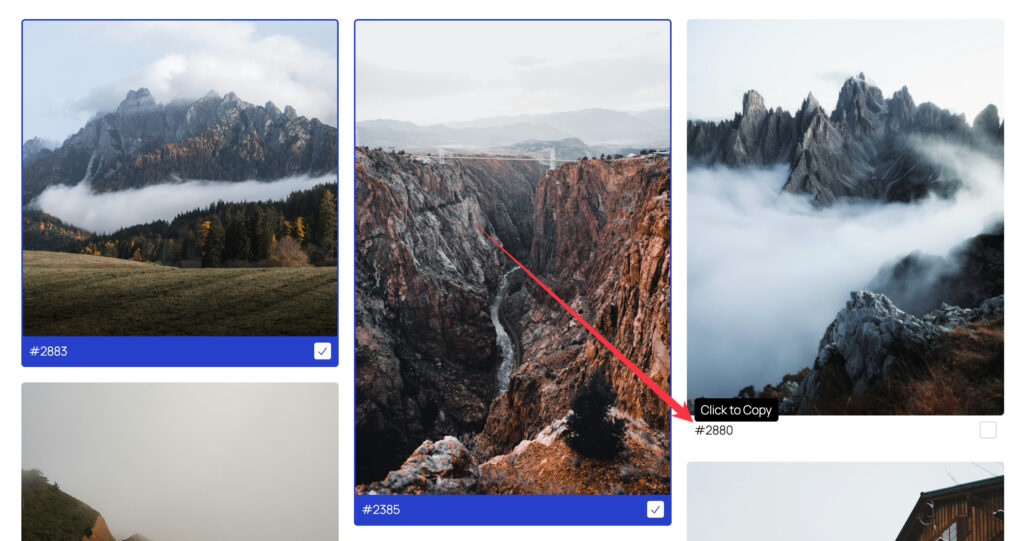
The client opens the gallery link (and enters the post password if you set one). While the gallery is in the Sent status:
- Every photo shows its label (click to copy it), a checkbox, and an outline when selected. Clicking a photo opens it in the lightbox.
- The toolbar above the gallery has a Select All checkbox, a display filter (Display All, Display Selected only, Display Unselected only), a counter (selected / limit, or selected / total), a Save button and a Send Selection button. Send Selection is disabled while nothing is selected.
- Selections are saved automatically 10 seconds after the last change, when the client clicks Save, when the tab regains focus, and when the client tries to leave the page (with a “You have unsaved changes” warning). The selection survives Load More, infinite scroll and page reloads.
- Every 15 seconds the page pulls the saved selection from the server, so two people looking at the same gallery see each other’s ticks. A local unsaved change is never overwritten.
- If the minimum is not reached, Send Selection shows “Please select at least N photo(s) before submitting.” If the maximum is exceeded, “You can select a maximum of N photo(s).”
When the client clicks Send Selection, the gallery status becomes Approved, the page shows “Proofing selection has been sent, we will contact you shortly.” and the checkboxes are disabled. The client cannot change the selection after that unless you reset the status.
Comments
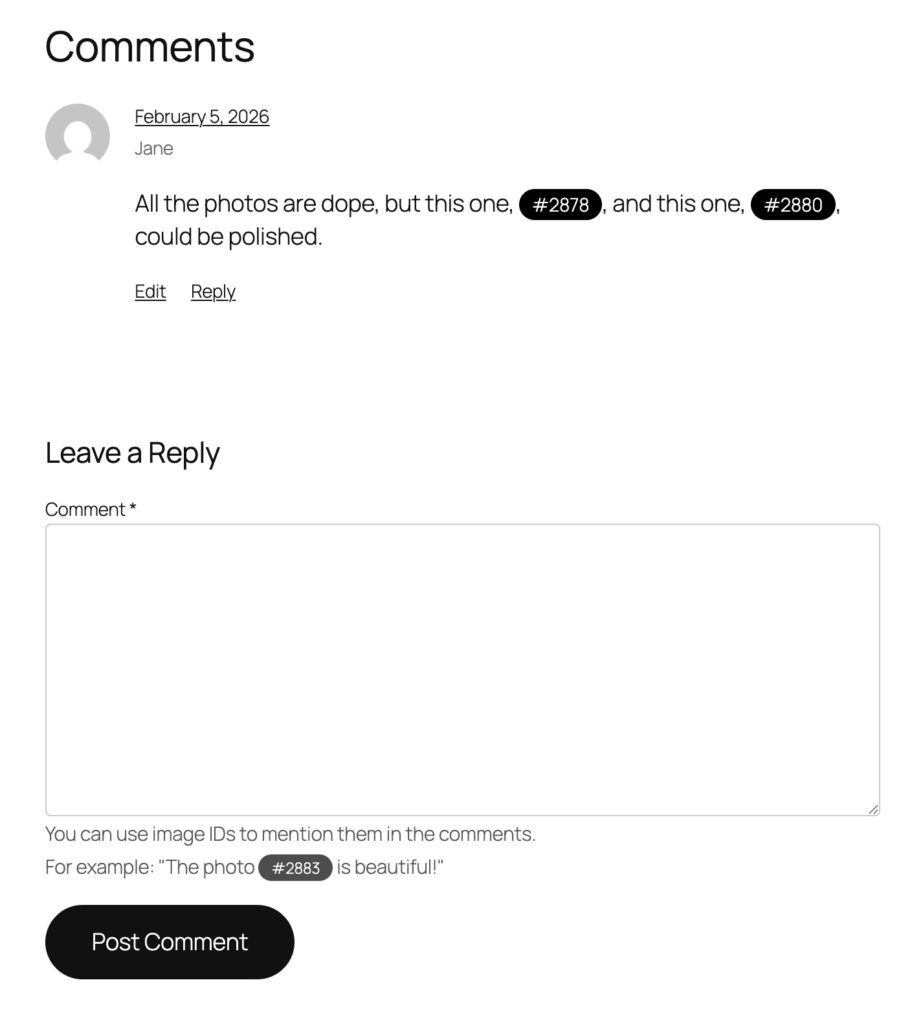
If your theme prints a comment form on single posts, the client can comment on the proofing page. Under the textarea the plugin adds the hint “You can use item labels to mention photos in comments. For example: “The photo #123 is beautiful!””. A label written in a comment (#123, or #filename-123) becomes a link that opens that photo in the lightbox. Comments need to be enabled for the post as usual.
Emails
Two emails are involved.
| When | From / To | Content | |
|---|---|---|---|
| To the client | On publish, only when Send Email is on and both Client Email and Message are filled | From the gallery author’s email address, to Client Email | Subject Proofing "Gallery title". Your Message with the tags replaced. HTML template with a “View Photos” button |
| To you | When the client clicks Send Selection | From no-reply@your-domain, reply-to set to the client email, to the gallery author’s email | Subject Proofing gallery "Gallery title" approved, text “The proofing gallery “…” has been approved by the client.” and a “View Approved Photos” button that opens the gallery in the editor |
Both go through wp_mail(). If your site cannot send mail, neither arrives, but the status still changes: the gallery becomes Sent only if the client email was sent successfully, and Approved when the client sends the selection. Use an SMTP plugin if emails do not arrive. Because the client email is sent from the author’s address, a strict SPF or DMARC policy on your domain can reject it; in that case the “Send Email” step reports a failure and the status stays at Creating.
Watermarks in proofing galleries
New proofing galleries have Add Watermarks to Photos switched on in the block’s Protection panel. Watermarked copies are shown only if they exist for the current watermark settings (see Watermarks). If you have not configured a watermark, the original photos are shown.
Caching and performance
Proofing pages send no-cache headers and set the DONOTCACHEPAGE constants, so page caching plugins skip them. The Pro “AJAX Cache and Preload” script is disabled on proofing pages. The selection is saved through the REST API (/wp-json/vpf/v1/proofing/<id>/selections), limited to 10 saves per minute per visitor and gallery. If a security plugin blocks the REST API for logged-out visitors, clients cannot save; the page then shows “An error occurred. Please refresh the page and try again.”
Status reference
| Status | Meaning | Client can select |
|---|---|---|
| Creating | Draft or just published without an email being sent yet | No |
| Sent / Published | Gallery is with the client | Yes |
| Approved | Client sent the selection | No |
The admin list of proofing galleries shows a Selection column (“12 photos”) and a Status dot with the same meanings.
Troubleshooting
- The proofing page returns 404. Open Settings → Permalinks and click Save Changes to flush rewrite rules. Since 3.6.0 the plugin repairs this itself on the next admin page load.
- The client’s checkboxes are greyed out. The gallery is already Approved, or the maximum selection was reached. Reset the status from the editor to reopen it.
- The email never arrived. Check Send Email was on before publishing, and that the site can send mail (test with an SMTP plugin). A gallery whose email failed stays in Creating; fix mail delivery and publish again, or send the link manually.
- Selections disappear between visits. Selections are stored on the server, not in the browser. If a caching or security plugin blocks
/wp-json/vpf/v1/, saving fails silently until the page shows the error message.