
Table of Contents
Pro Feature
This is a part of the Visual Portfolio Pro plugin.
Purchase the Pro plugin to access this and other advanced features.
Visual Portfolio → Settings → Watermarks. A logo or a line of text is stamped onto copies of your images. Galleries show the copies when you turn on Add Watermarks to Photos in their Protection panel. Original files are never changed.
Requires the PHP extensions GD and Fileinfo. The tab names the missing one (“To generate watermarks required these libraries: …”).
A text watermark also needs GD with FreeType support. Without it, Text cannot be selected under Source, and the tab says “Text watermarks require GD with FreeType support. Ask your hosting provider to enable it.” An image watermark still works.
Settings
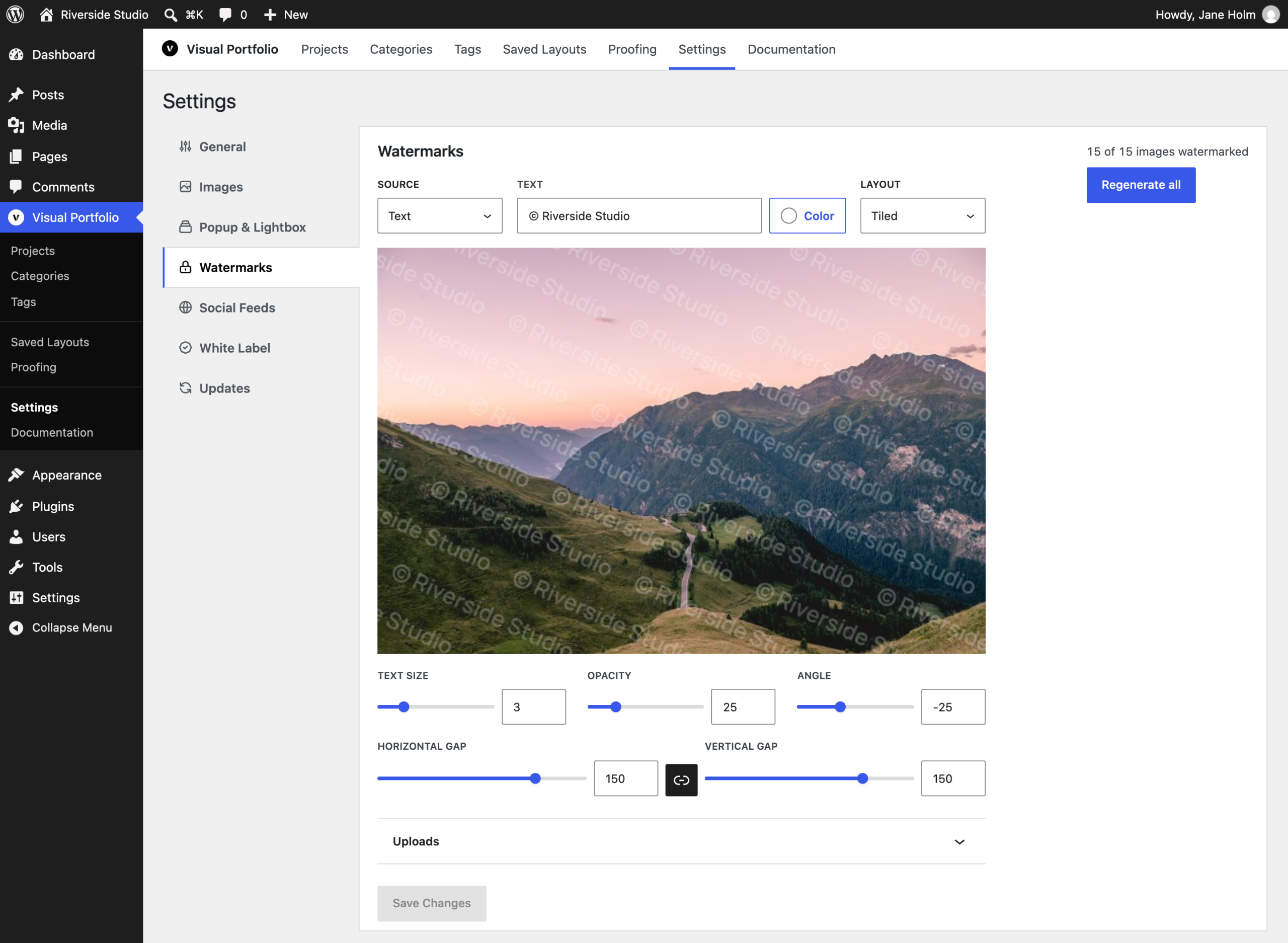
| Setting | Values | Default | Notes |
|---|---|---|---|
| Source | Image or Text | Image | Image stamps a logo from your Media Library. Text stamps the words you enter |
| Text | One line of text, for example © Riverbank Photography | © and your site title | Shows for Text |
| Color | Any color | White, #ffffff | Shows for Text. Click Color to open the color picker. A thin dark edge keeps the letters readable on light photos |
| Add Watermark | A JPEG, PNG, GIF or WebP image from the Media Library | none | Shows for Image. Once a logo is chosen, the buttons read Replace Watermark and Remove Watermark. A PNG with transparency keeps the photo visible around the logo |
| Layout | Position or Tiled | Position | Position places one watermark. Tiled repeats it over the whole photo in staggered rows |
| Position | Nine squares on the preview photo: the corners, the middle of each edge, and the center | Bottom right corner | Shows for Position. Click a square on the photo. The watermark keeps a margin of 5% of the photo’s shorter side from the edges. On a phone, a very wide photo also gets a Position list under it |
| Text size | 1 to 100 % | 3 | Shows for Text. The text height as a percentage of the photo width. At 3, the line is 30 pixels high on a photo 1,000 pixels wide. The slider stops at 10. Type a larger number in the box next to it |
| Size | 1 to 100 % | 30 | Shows for Image. A wide logo takes this share of the photo width, a tall logo of the photo height, and a square logo of the shorter side |
| Opacity | 1 to 100 % | 25 | Lower values let more of the photo show through |
| Angle | -90 to 90 degrees | -25 | Shows for Tiled. Rotates every watermark. Negative values tilt it down to the right |
| Horizontal gap, Vertical gap | 0 to 200 % | 150 | Shows for Tiled. The space between watermarks, as a percentage of the text height or of the logo’s shorter side. The chain icon between them keeps both values equal. Its tooltip reads Unlink gaps while they are linked |
| Automatically apply watermark during image upload | on / off | on | In the Uploads group, which stays closed until you click it. Makes copies of each new upload |
The photo under Source and Layout is a preview. It shows the newest image in your Media Library, or a sample photo when the library has none, and redraws as you change a setting. Visitors see no change until you click Save Changes, which becomes active once you change something.
Text uses one built-in font with Latin, Cyrillic and Greek letters. There is no font setting, and the font has no Chinese, Japanese or Arabic letters.
If the photo cannot load, the preview uses the sample photo and says so. If the logo or the font cannot load, an error appears with Retry preview.
Generation progress
Next to the settings, or above them on a narrow screen, a line counts the images that have a current copy, for example “12 of 340 images watermarked”. After you save a changed watermark, the tab says “Watermarks are being regenerated in the background. Visitors see the previous watermark until each image is done.” The server makes the copies through WordPress scheduled tasks, so you can close the tab.
| Button | What it does |
|---|---|
| Generate watermarks | Makes the missing copies and redoes copies made with older settings. Shows while some images are not done |
| Regenerate all | Redoes every copy with the saved settings. Shows when every image is done |
| Pause, Resume | Holds the remaining work, then continues it. Shows while a run is going |
| Cancel | Drops the remaining work. Copies already made stay. Shows while a run is going |
| Retry failed | Tries the failed images again. Shows after a run in which some images failed |
A failed image does not stop the run. The count line adds the number of failed images, and up to 100 of them are listed under the buttons, each with a link and the reason.
How copies are made
- Formats: JPEG, PNG, GIF and WebP originals. SVG, AVIF and BMP are not watermarked; the original is shown for them.
- Every registered size of the image gets a copy (full size and all thumbnails). Copies are stored under
wp-content/uploads/visual-portfolio-pro/watermarks/YEAR/MONTH/, named by a hash of the original’s file name. The originals keep their own URLs. - With Automatically apply watermark during image upload on, new uploads are processed right after WordPress creates their sizes. Saving a changed watermark queues every image again in the background, whether that switch is on or off.
- WebP copies made by LiteSpeed Cache’s image optimization are watermarked as well.
- Deleting an image from the Media Library deletes its copies.
Per image
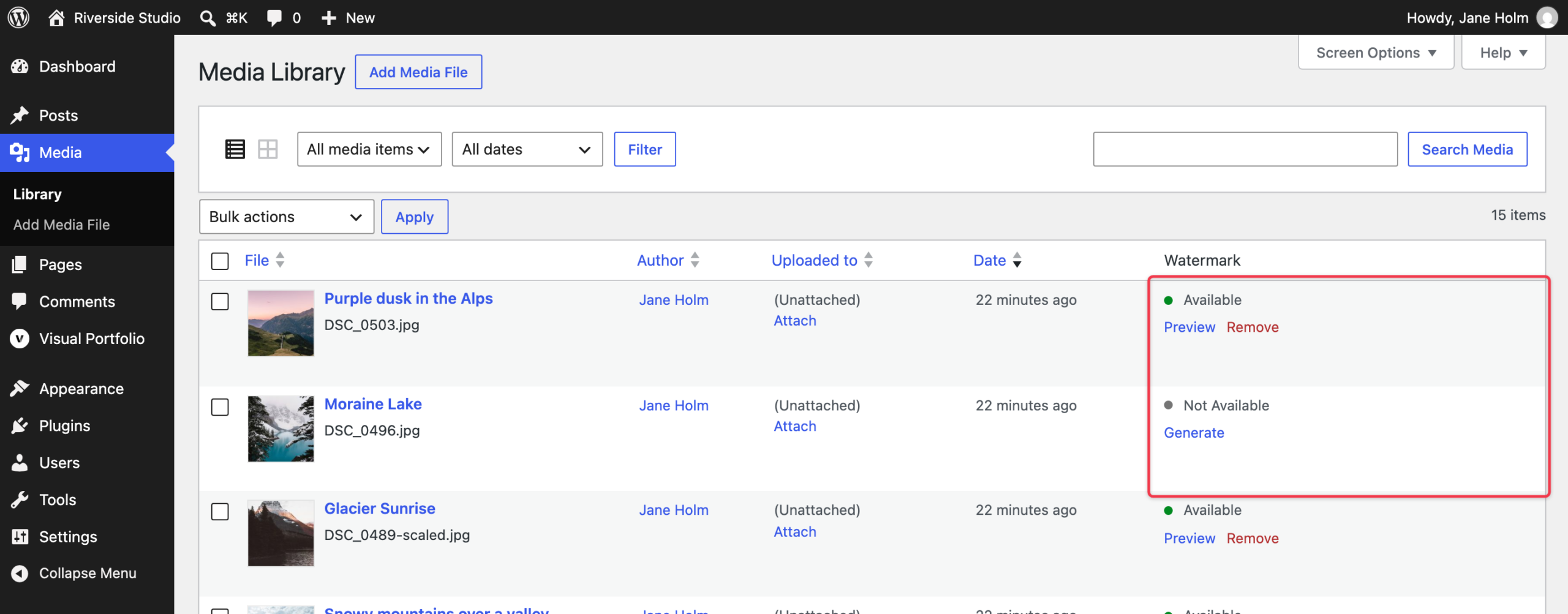
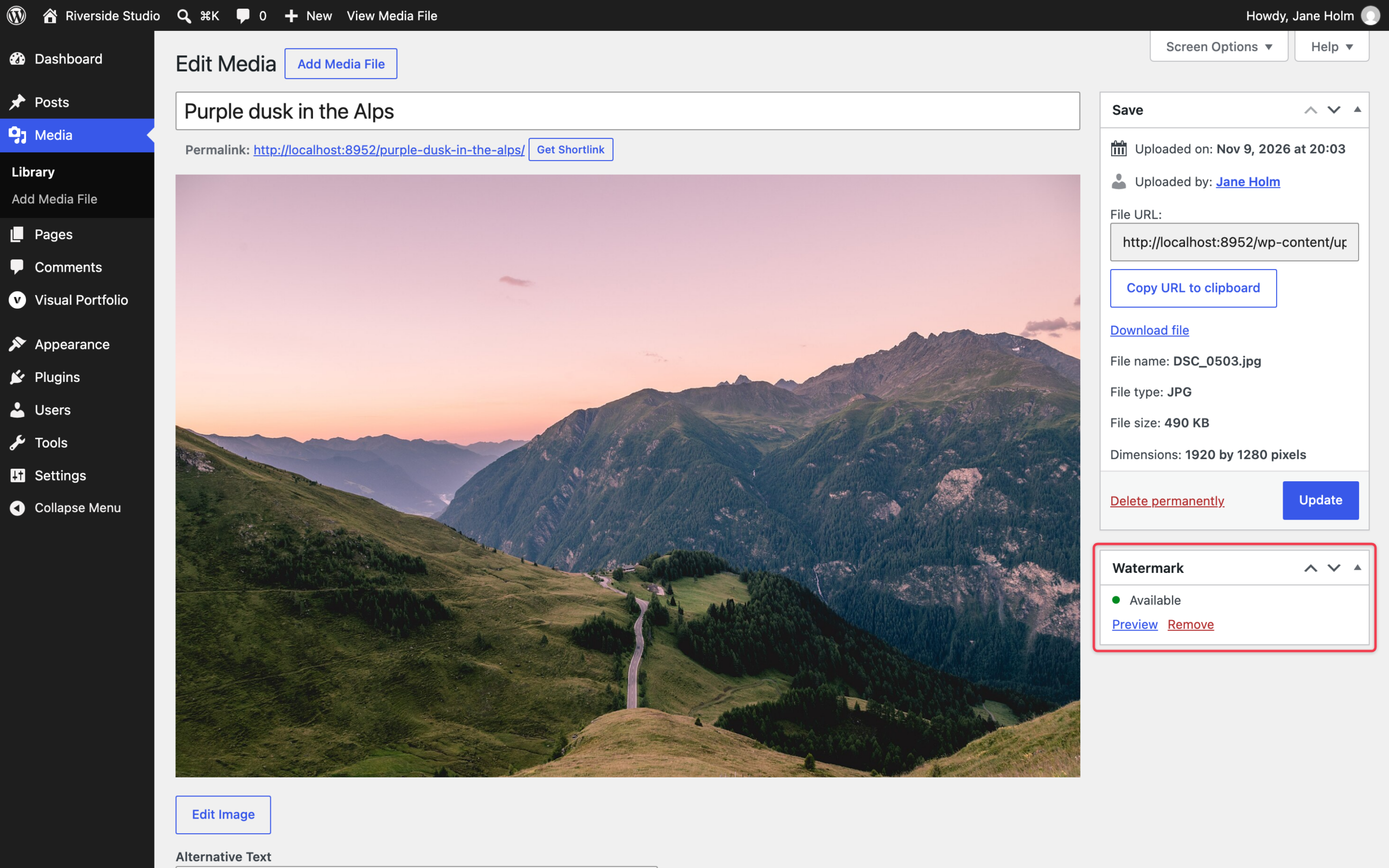
While a watermark is set up, the Media Library list view has a Watermark column, the attachment screen has a Watermark box, and Attachment details, opened from the grid view or a media picker, has a Watermark line. Each shows Available or Not Available and these links:
- Generate makes the copies of that image now. Use it when Automatically apply watermark during image upload was off or a copy is missing.
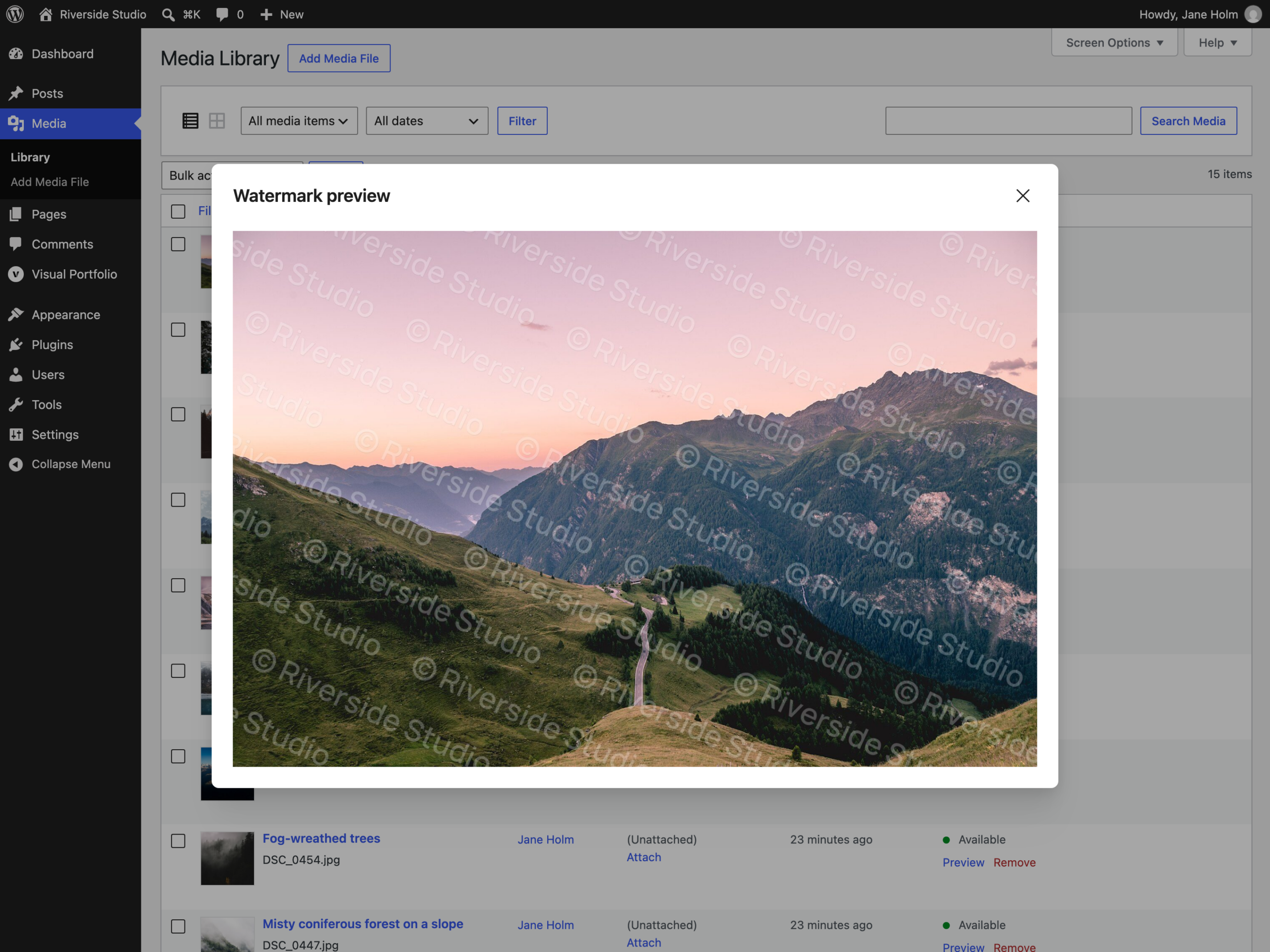
- Preview opens the watermarked copy in a window.
- Remove asks you to confirm, then deletes the copies of that image.
If an action fails, the line shows “Error” and the reason, and the links come back so you can try again.
Show watermarked images
Switch on Add Watermarks to Photos in the block’s Protection panel (see Protection). The gallery, the srcset, the lightbox image, album images and the URL click-action link then use the copies. After you change the watermark, visitors keep seeing the previous copy of each image until its new copy is done. An image that has no copy yet shows the original. With the switch on, the panel links to the watermark settings with the count, for example “12 of 340 images watermarked”, or shows “Watermark is not set up.” with Set it up.
Proofing galleries are created with the switch on. Social feed images cannot be watermarked.
Removing
To turn watermarks off for the whole site, click Remove Watermark for an image watermark, or clear the Text field for a text watermark, then click Save Changes. Galleries then show the original images, and no new copies are made. Copies already made stay until you remove them per image or delete the image. To turn watermarks off for one gallery, turn off Add Watermarks to Photos in its Protection panel and update the page.