Table of Contents
Pro Feature
This is a part of the Visual Portfolio Pro plugin.
Purchase the Pro plugin to access this and other advanced features.
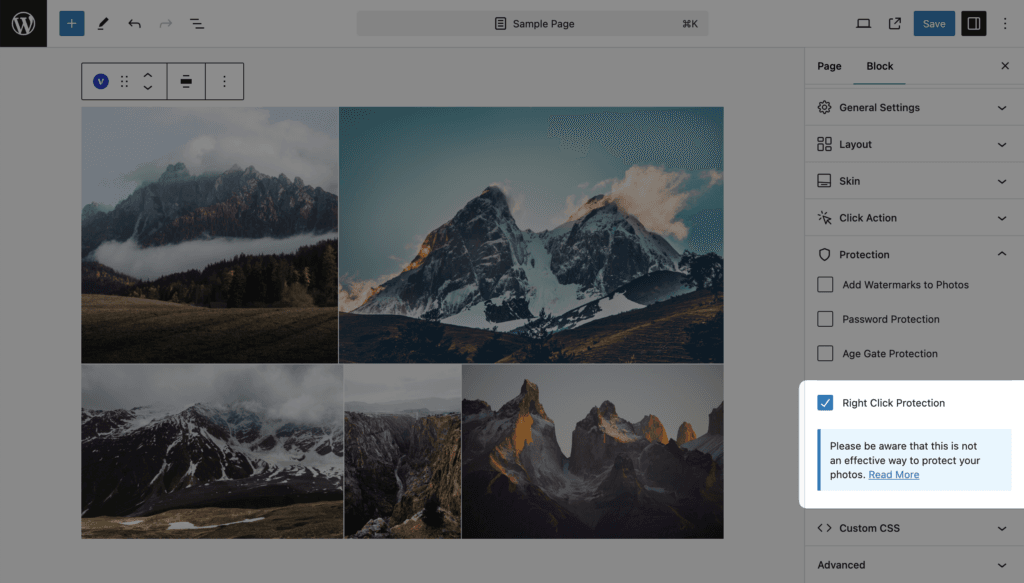
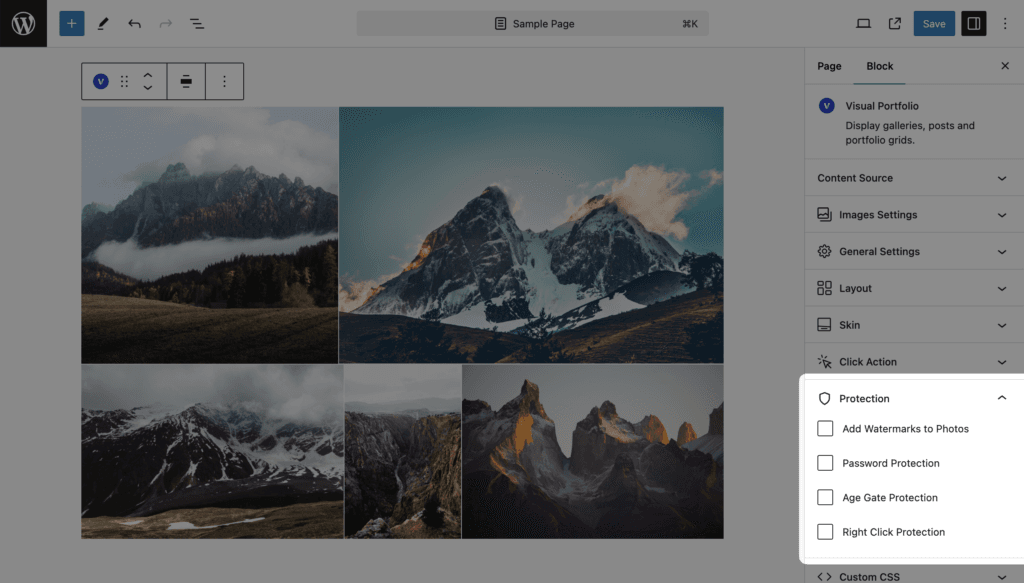
Block settings → Protection. Four ways to limit what a visitor can do with a gallery. They can be combined.
| Feature | What it does | Where it is configured |
|---|---|---|
| Watermarks | Serves watermarked copies of the images instead of the originals | Settings → Watermarks (create the copies), then this panel (use them) |
| Password Protection | Hides the gallery behind a password form | This panel |
| Age Gate Protection | Hides the gallery behind a date-of-birth form | This panel |
| Right Click Protection | Blocks the context menu and dragging on gallery and lightbox images | This panel |
The Protection panel is not shown for the Social content source.
Watermarks
| Setting | Default | Notes |
|---|---|---|
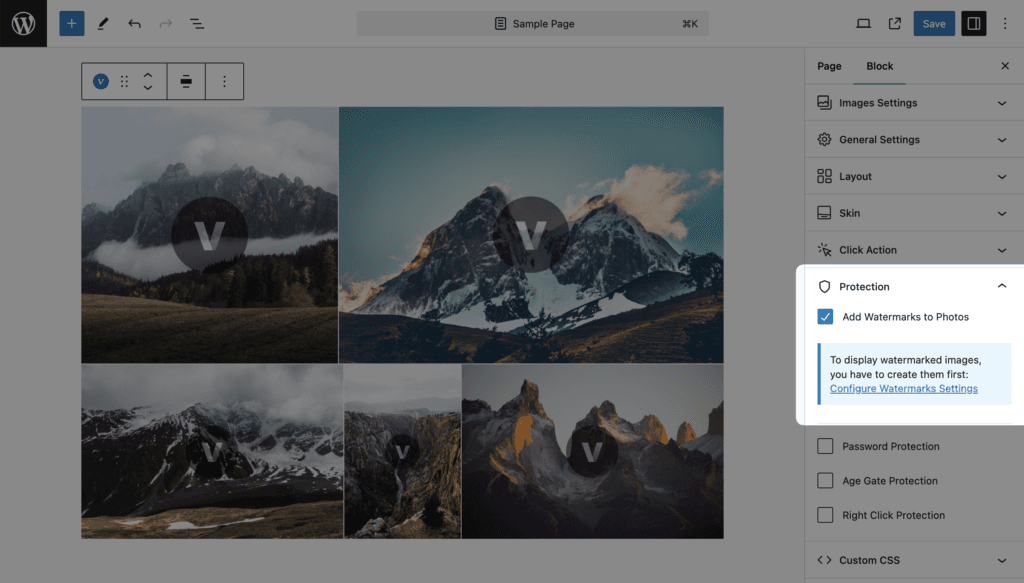
| Add Watermarks to Photos | off | When on, every image of the gallery, its srcset, the lightbox image and the URL click-action link point to the watermarked copy |
The copy is used only when it exists for the current watermark settings. If the logo, position, size or opacity changed after the copy was made, or the copy is still being generated, the original image is shown until the copy is ready. Create the copies first in Settings → Watermarks (Autogenerate, Bulk Generate, or per image in the Media Library). The panel reminds you: “To display watermarked images, you have to create them first: Configure Watermarks Settings”.
Watermarks are never applied to social feed images.
Password Protection
| Setting | Default |
|---|---|
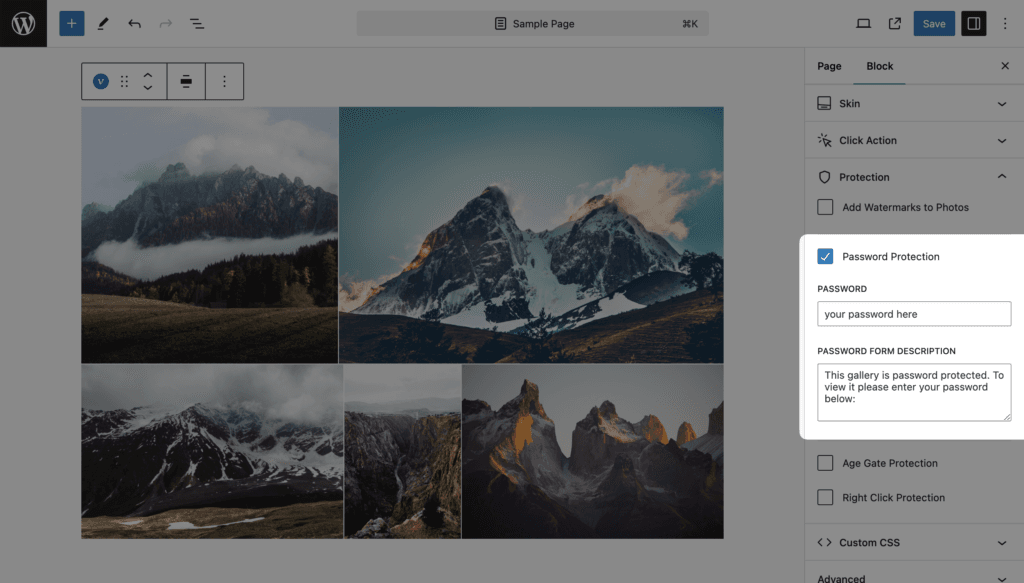
| Password Protection | off |
| Password | your password here |
| Password Form Description | “This gallery is password protected. To view it please enter your password below:” |
Visitors see the description, a Password field and an Enter button instead of the gallery. A wrong password shows “The password is incorrect.” After a correct password a cookie is set for 30 days for that gallery, so the visitor is not asked again on that device.
The password is saved in the block settings as plain text. Anyone who can edit the page can read it. The editor preview always shows the gallery, never the form.
Age Gate Protection
| Setting | Default |
|---|---|
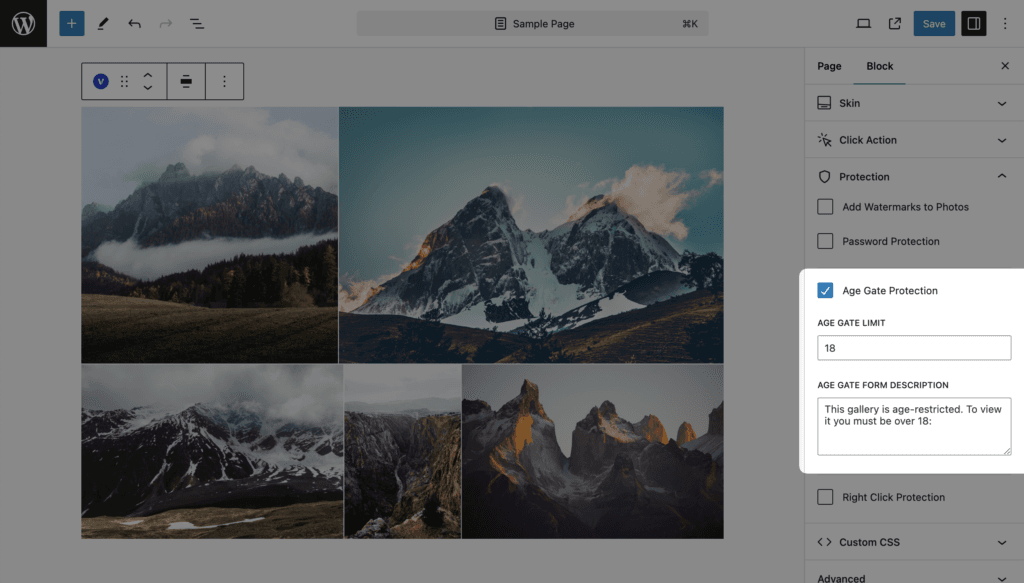
| Age Gate Protection | off |
| Age Gate Limit | 18 (1 to 100) |
| Age Gate Form Description | “This gallery is age-restricted. To view it you must be over 18:” |
Visitors see the description, a Birthday date field and Enter. A birthday below the limit shows “Your age is less than necessary.” A passing birthday sets one cookie for 30 days that is shared by every age-gated gallery on the site, so the visitor confirms once.
Search engine crawlers (user agents containing bot, crawl, slurp or spider) skip the age gate so the page can be indexed. They do not skip the password.
When both password and age gate are on, the visitor has to pass both in the same form.
Right Click Protection
| Setting | Default |
|---|---|
| Right Click Protection | off |
When on, in the gallery and in the open lightbox:
- the right-click context menu is blocked on images and on links that point to image files;
- dragging an image out of the page is blocked;
- Alt-click, Shift-click and Cmd-click on those links are blocked, so “download linked file” shortcuts do nothing.
It does not stop screenshots, the browser’s developer tools, or typing the image URL. The panel says so: “Please be aware that this is not an effective way to protect your photos.” Treat it as a deterrent for casual visitors.