
Table of Contents
Managing your project settings in Visual Portfolio involves both standard settings and custom meta settings, providing you with extended functionality to showcase your work effectively.
Standard Settings
Similar to other post types, a Project includes many standard settings accessible in the Project tab:
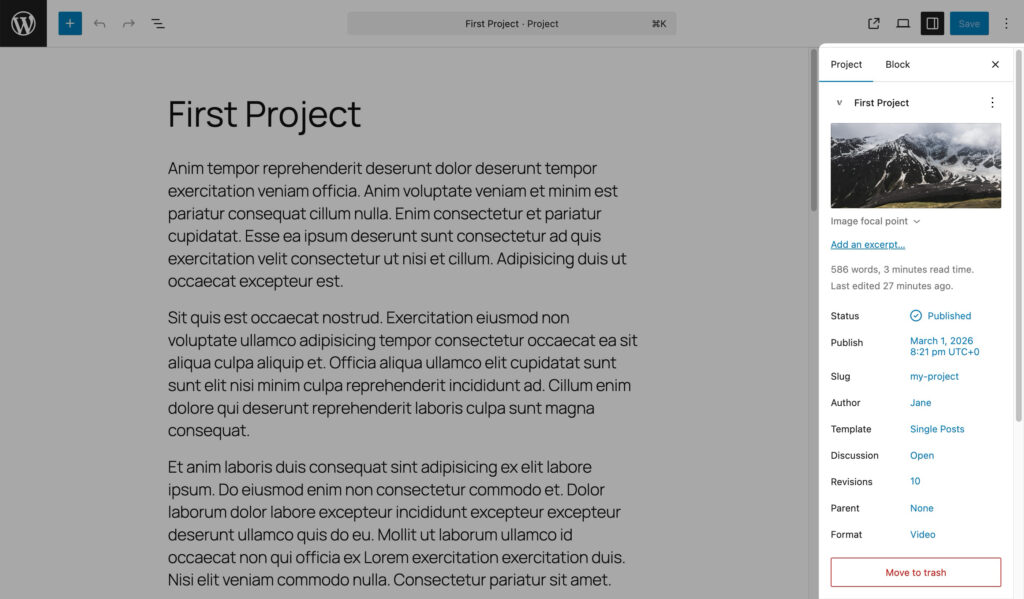
- Post Title: The main title of your project.
- Post Content: The detailed description or content of your project.
- Post Format: Choose the format that best represents your project (Standard, Video, Audio).
- Publish Date: Set the date when you want your project to be published.
- Featured Image: An image that represents your project.
- Categories: Organize your project by assigning it to specific categories.
- Tags: Use tags to further classify your project.
- etc…
Custom Meta Settings
Visual Portfolio provides custom Meta Settings for Projects to enhance functionality and presentation.
Featured Image Focal Point
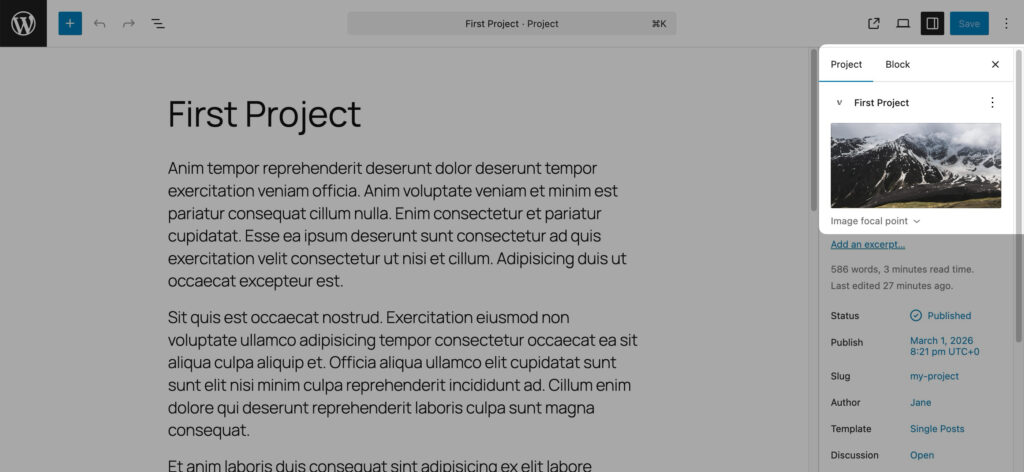
Sometimes, you need to adjust the focal point of the Featured Image displayed in your layout:
- Select Featured Image: Choose your featured image.
- Change Focal Point: Visually change the focal point to highlight the desired area.
Video URL
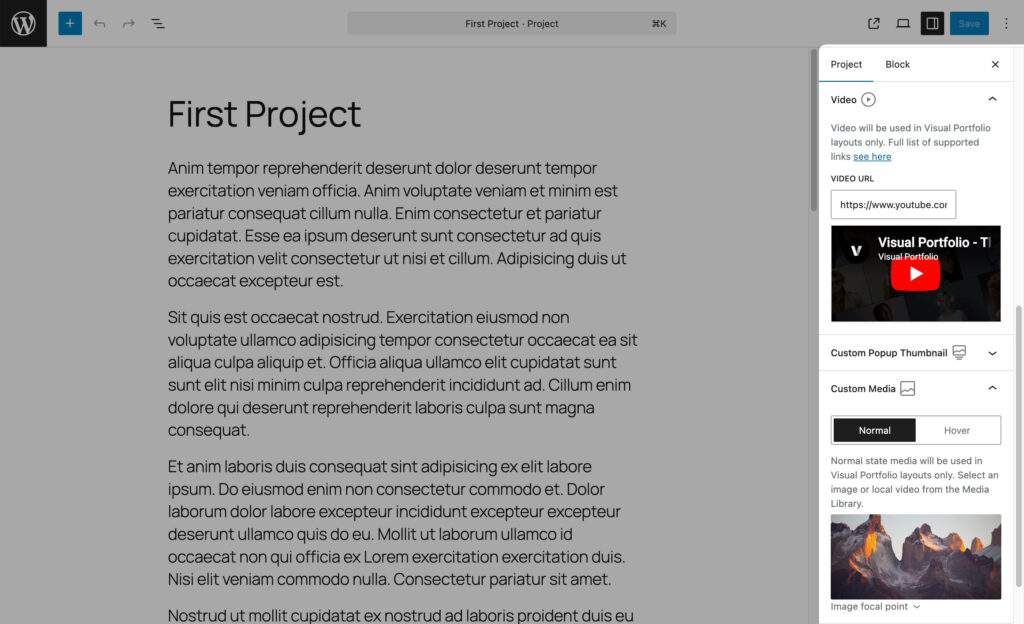
Use Video URL when the project format is set to Video. This setting controls the project video source. It is different from Custom Media, which controls the media preview shown inside the portfolio grid.
Audio URL
Pro Feature
This is a part of the Visual Portfolio Pro plugin.
Purchase the Pro plugin to access this and other advanced features.
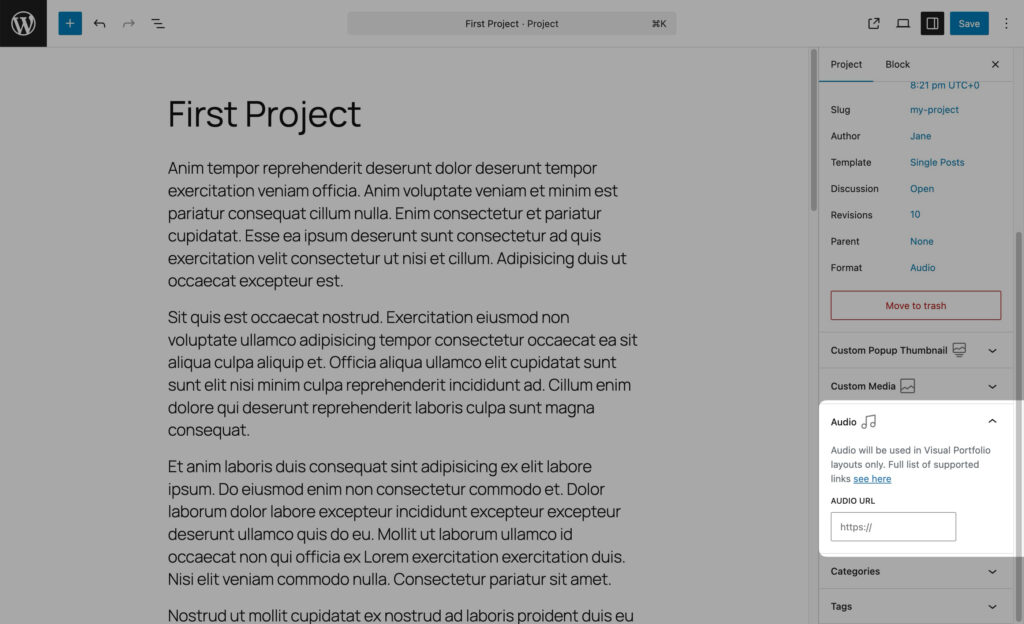
For Audio Post Formats, you can add an audio URL. This setting is only visible when the Post Format is set to Audio.
Album Images
Pro Feature
This is a part of the Visual Portfolio Pro plugin.
Purchase the Pro plugin to access this and other advanced features.
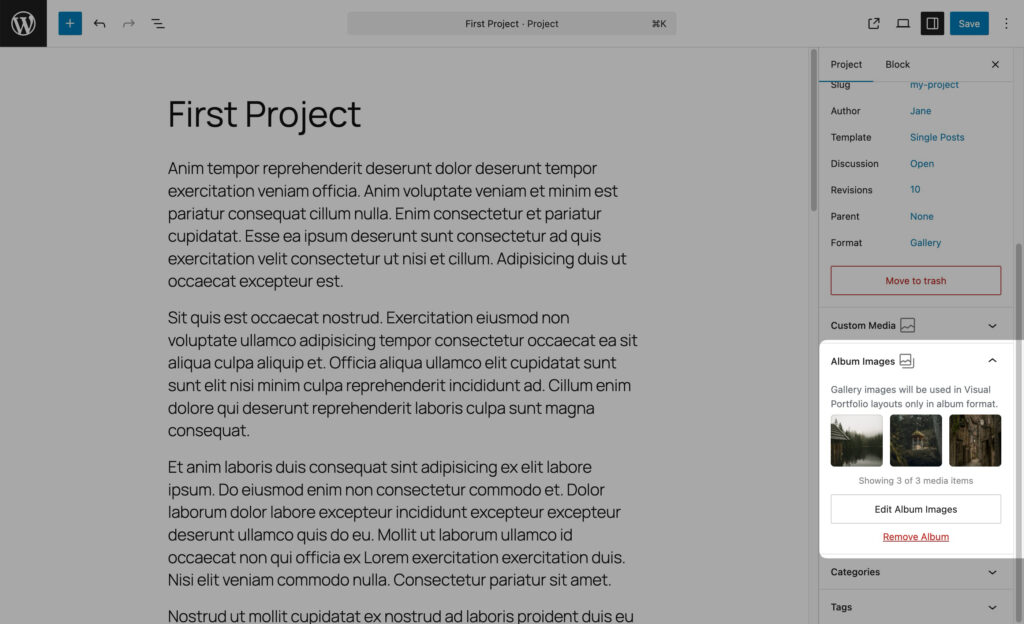
When a project uses the Gallery format, an Album Images panel becomes available. Use this panel to select the images that should be opened in the popup gallery for that project.
Custom Media
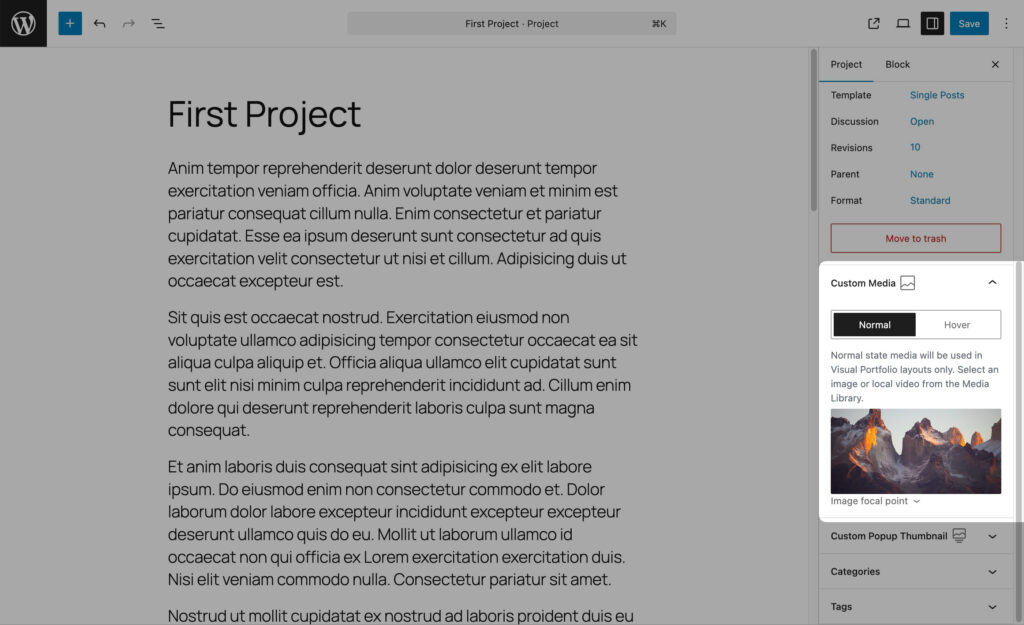
Normal
Use the Normal tab to define the media shown for the default item state. You can select:
- an image from the Media Library
- a local video from the Media Library
When using a local video, you can also assign a Cover Image.
Hover
Pro Feature
This is a part of the Visual Portfolio Pro plugin.
Purchase the Pro plugin to access this and other advanced features.
Use the Hover tab to define the media shown when the visitor hovers over the item. You can select:
- an image from the Media Library
- a local video from the Media Library
Custom Popup Thumbnail
Pro Feature
This is a part of the Visual Portfolio Pro plugin.
Purchase the Pro plugin to access this and other advanced features.
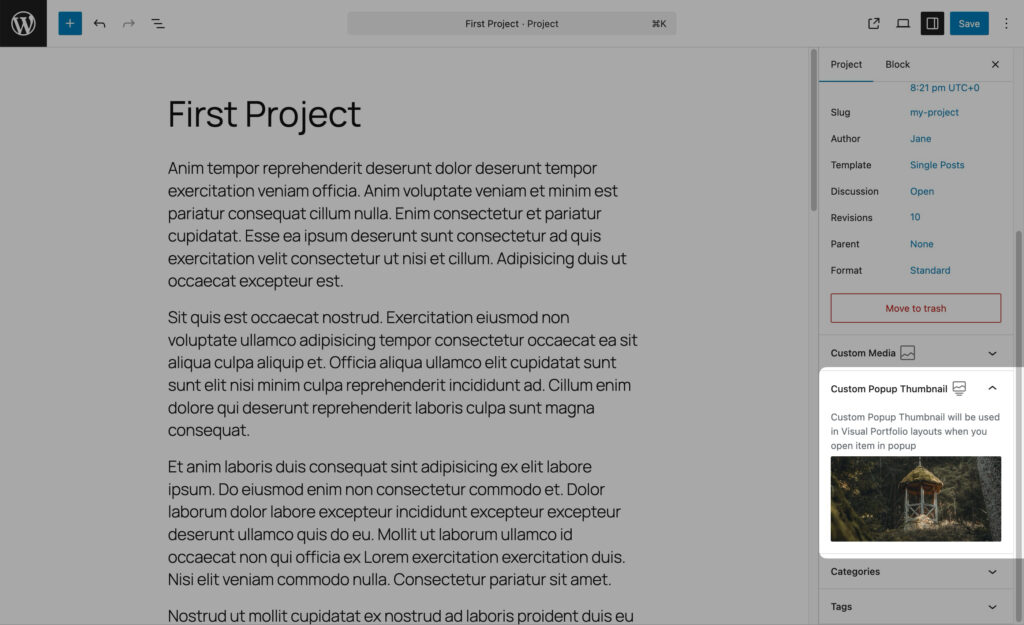
Set a specific image to be used in the lightbox when the project is viewed in a portfolio gallery.