
Table of Contents
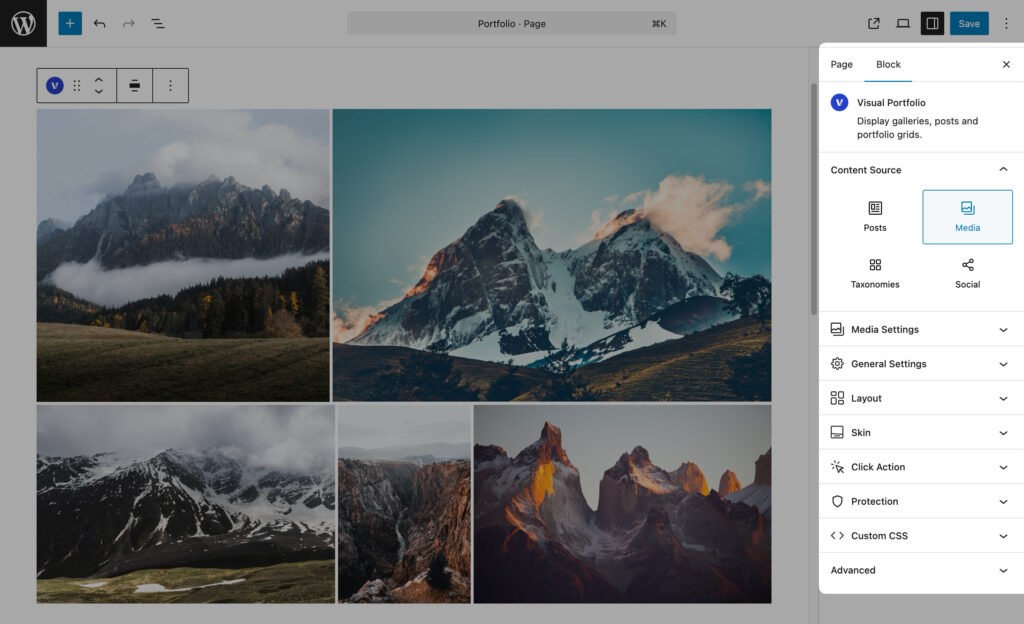
Visual Portfolio supports multiple content sources, so you can build galleries from different types of content in WordPress. Available content sources:
- Posts
Display blog posts, projects, or any public post type and control the output using post type, taxonomy, author, date, and manual selection settings. - Media
Build a gallery from items in the Media Library. Supports images, local videos, media formats, albums, hover media, and advanced item controls. - Taxonomies Pro
Display taxonomy terms such as categories, tags, and custom taxonomies as gallery items with their own thumbnails, descriptions, and archive links. - Social Pro
Connect social accounts and display imported social content in your galleries.
Posts
Display blog posts, projects, or any public post type and control the output using post type, taxonomy, author, date, and manual selection settings. To configure:
- Select Posts as your Content Source.
- Choose the post type (e.g., Post, Page, Portfolio).
- Set additional filters like categories or tags if needed.
Media
Build a gallery from items in the Media Library. Supports images, local videos, media formats, albums, hover media, and advanced item controls. To set up:
- Select Media as your Content Source.
- Click Edit Gallery to choose images/videos from your Media Library.
- Arrange media items in your desired order.
Taxonomies
Pro Feature
This is a part of the Visual Portfolio Pro plugin.
Purchase the Pro plugin to access this and other advanced features.
Display taxonomy terms such as categories, tags, and custom taxonomies as gallery items with their own thumbnails, descriptions, and archive links. To configure:
- Select Taxonomies as your Content Source.
- Choose the taxonomy type (e.g., Category, Tag, Project Category, etc…).
- Set additional filters like parent category or order if needed.
Social
Pro Feature
This is a part of the Visual Portfolio Pro plugin.
Purchase the Pro plugin to access this and other advanced features.
Connect social accounts and display imported social content in your galleries. To use:
- Select Social as your Content Source.
- Choose the social network you want to display.
- Configure the specific settings for the chosen network.
Note: You need to connect your social media accounts in the Visual Portfolio settings before using this option.
General Settings
These settings apply to all content sources:
- Items Per Page – Set the number of items to display per page. Combine it with the Pagination module
- No Items Action – Choose what to display when no items are available.