
Table of Contents
Pro Feature
This is a part of the Visual Portfolio Pro plugin.
Purchase the Pro plugin to access this and other advanced features.
Pro. Shows the terms of a taxonomy as gallery items: one item per category, tag or custom term, with the term name as title, the term description as description, a link to the term archive, and an image.
Any public taxonomy can be used (post categories, Portfolio Categories, product categories, custom taxonomies) except the internal ones (menus, link categories, post formats).
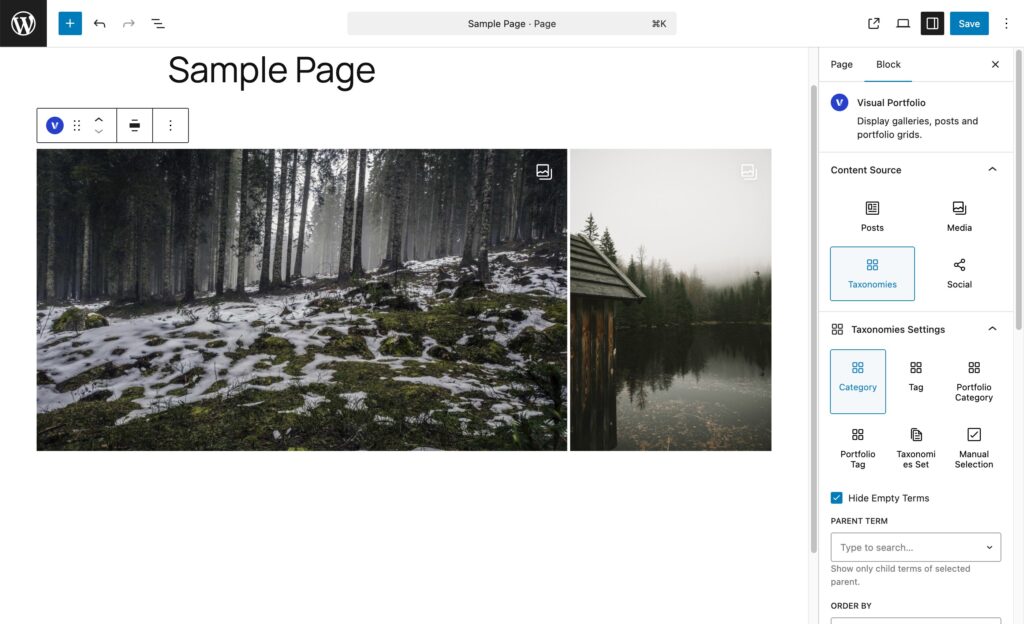
Source
| Option | Shows | Extra setting |
|---|---|---|
| One taxonomy (Categories, Tags, Portfolio Categories, …) | All its terms | |
| Taxonomies Set | Terms of several taxonomies together | Taxonomies |
| Manual Selection | Only the terms you pick | Specific Terms (prefixed by the taxonomy name when several are mixed). With nothing picked the gallery is empty on purpose |
Settings
| Setting | Values | Default | Notes |
|---|---|---|---|
| Hide Empty Terms | on / off | on | Terms without published posts are left out |
| Parent Term | All Terms, Top Level Only, or one parent | All Terms | Hierarchical taxonomies only; hidden for Manual Selection |
| Order by | Name, Post Count, Manual Selection, Term ID, Slug, Description, Parent, Term Order, None | Name | Term Order needs a term-ordering plugin |
| Order Direction | ASC, DESC | ASC |
Items Per Page and pagination work as for posts.
Term images
Each item shows, in this order:
- the term’s Thumbnail (a field on the term’s Add and Edit screens, added by Pro to every public taxonomy);
- otherwise the featured image of the newest published post in the term;
- otherwise the Placeholder Image from Settings → General.
Posts Count
Display Posts Count in the skin’s Elements section shows “8 Posts” (or the post type’s label) on each item. It appears only for this source.
Click action
URL opens the term archive. Popup opens the term image; with Albums, a term can open all images of its posts (see Albums).
Advanced click action formats
Term with No-Image, Term with Image. See Click Action.
Filter
The Filter element cannot list terms for this source; leave it out of the layout.