
Table of Contents
The Media content source lets you build a gallery from items in the WordPress Media Library. It supports images, local videos, item formats, albums, hover media, custom titles, descriptions, and manual ordering.
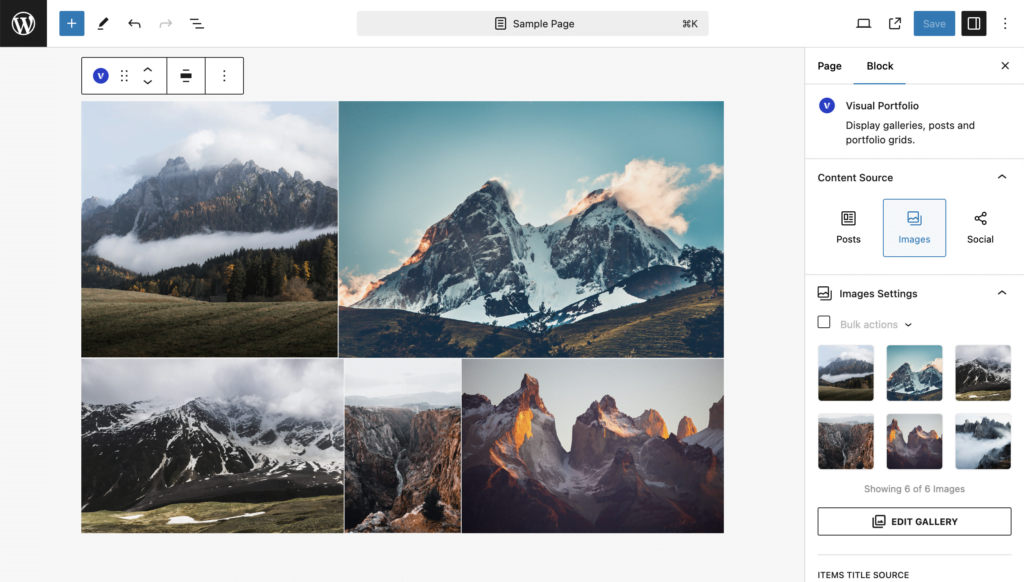
Selecting Media
To create a media gallery:
- Add a Visual Portfolio block, open Content Source, select Media
- Click on the Edit Gallery button to open the Select or Upload Media window.
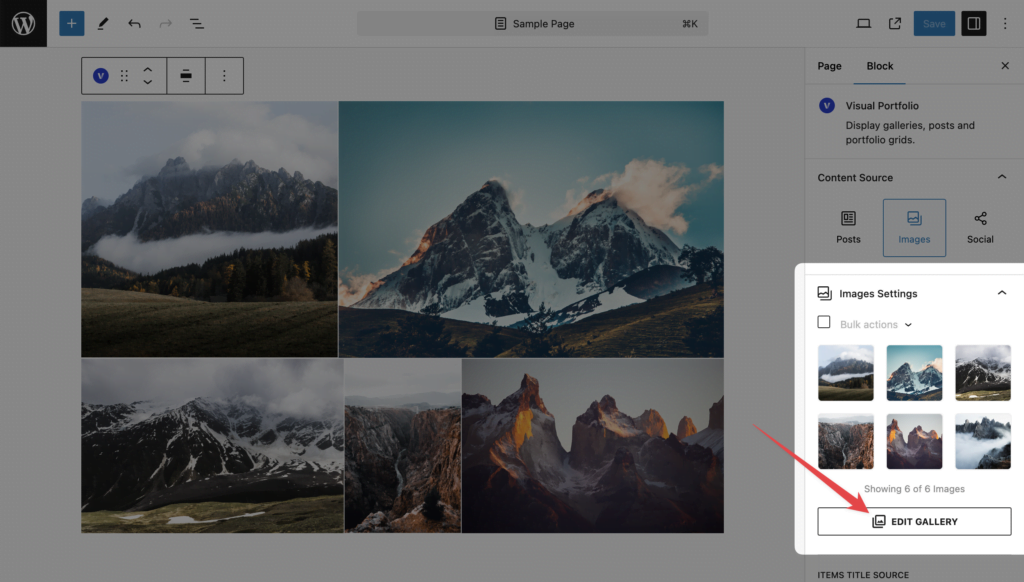
- Use Media Library images/videos or upload new images/videos in this dialog.
- Click on an image to select it.
- In the Attachment Details panel of this window, you can set various values for your image:
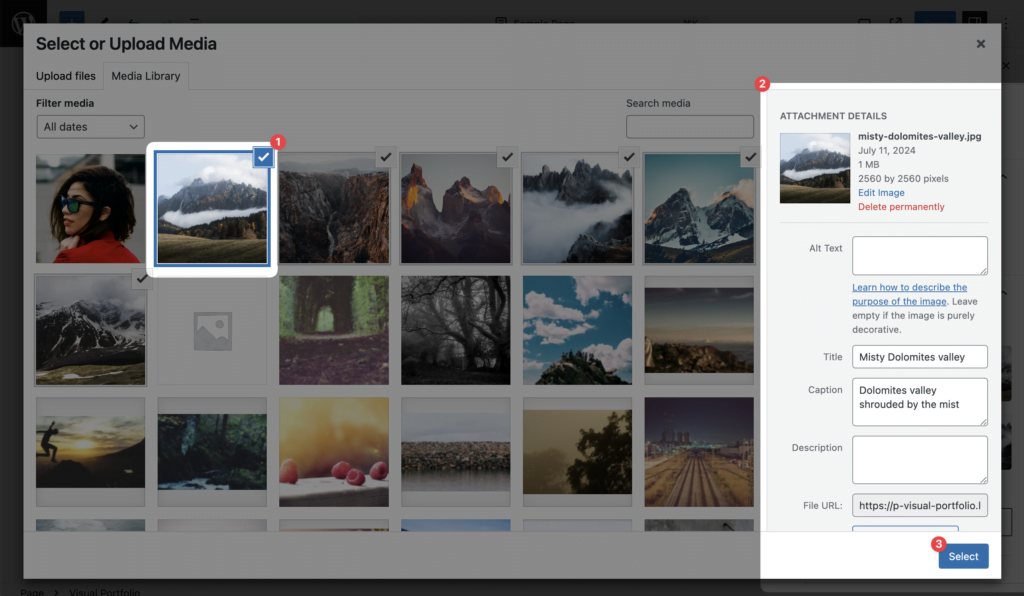
- Title, Description, Caption, Alt: These attributes can be displayed in your gallery items and in popup window if configured.
To change these settings later, visit Admin Menu → Media → Library and click on the image to adjust its details.
When the image/video is selected, click on the Select button. To select multiple media, hold the Ctrl or Shift key while selecting.
Media Item Settings
Once your media are added to your portfolio, they are shown in the Media Settings section, where further adjustments can be made:
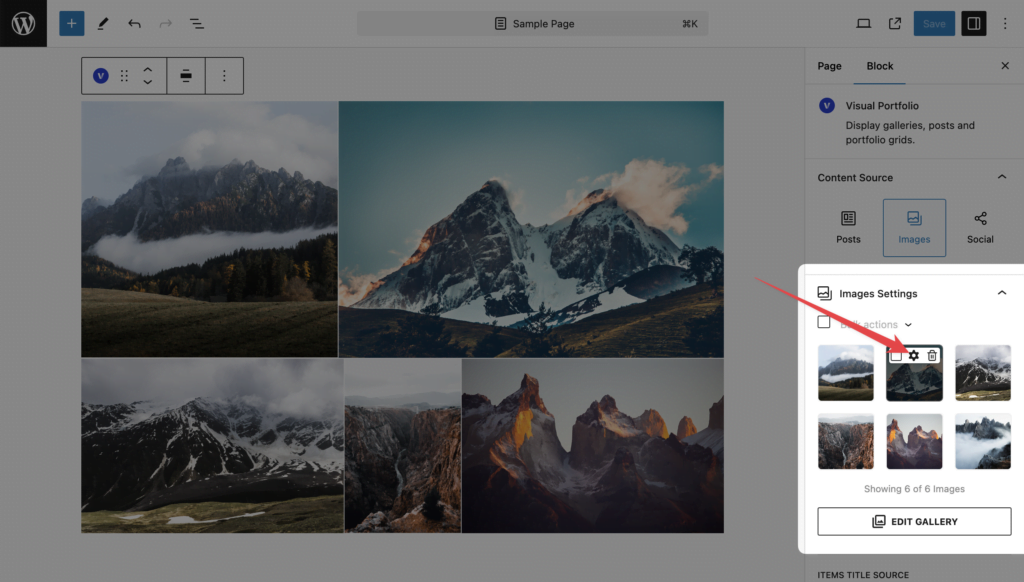
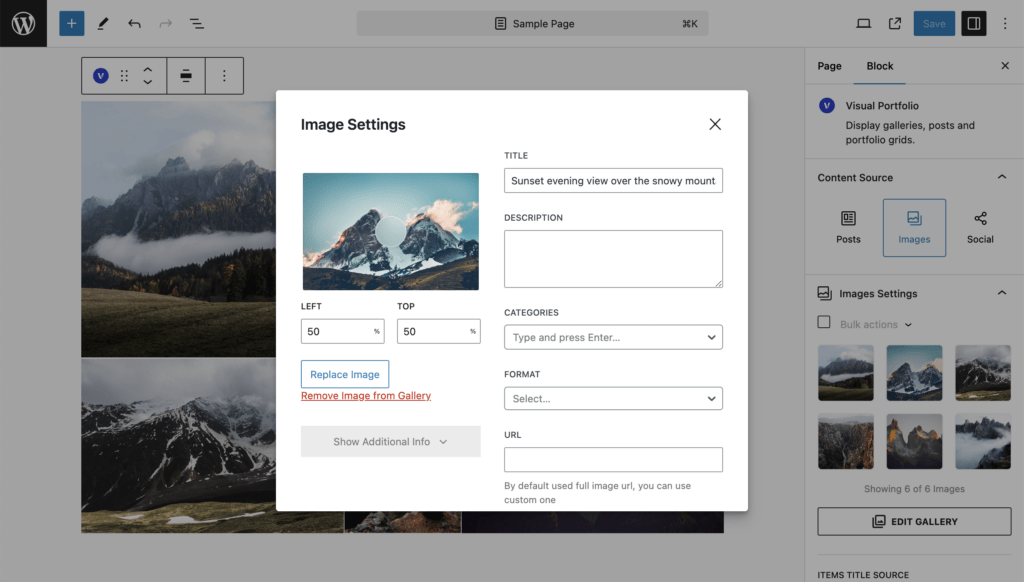
Focal Point
Adjust the focal point of an image as needed when it is displayed in your gallery.
Local Video Thumbnails
When the selected media item is a local video from the Media Library, additional video thumbnail options are available. These include:
- Cover Image
- Playback
Cover Image
Use Cover Image to display a custom image before the video starts.
Playback
Available playback modes:
- Autoplay in Viewport
- Play on Hover
Hover Media
Media items can also use hover media. Hover Media supports:
- images from the Media Library
- local videos from the Media Library
Use hover media when you want the item preview to change on hover in supported layouts.
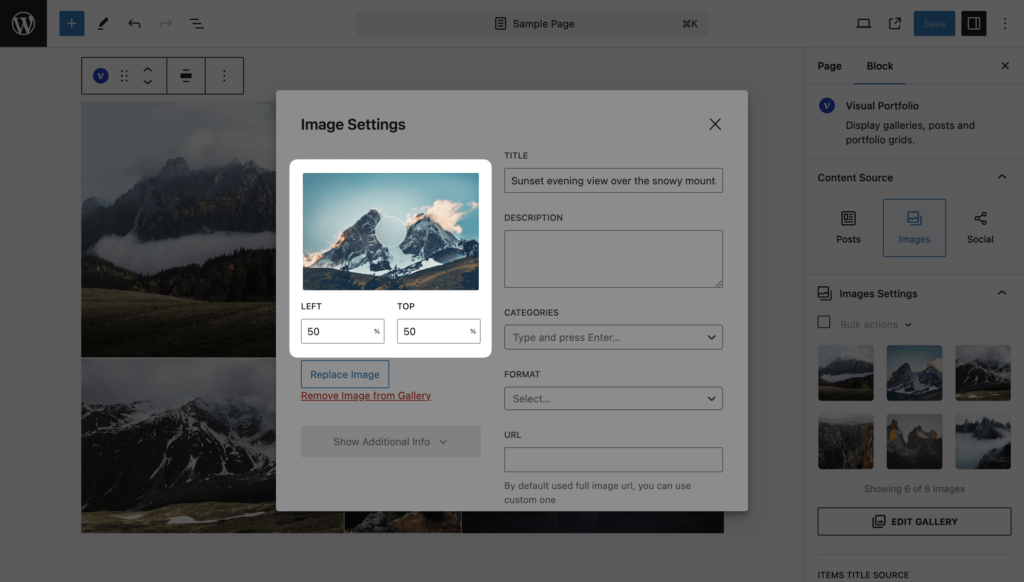
Title and Description
Set a title and description for your gallery items. These will be shown in your gallery if enabled.
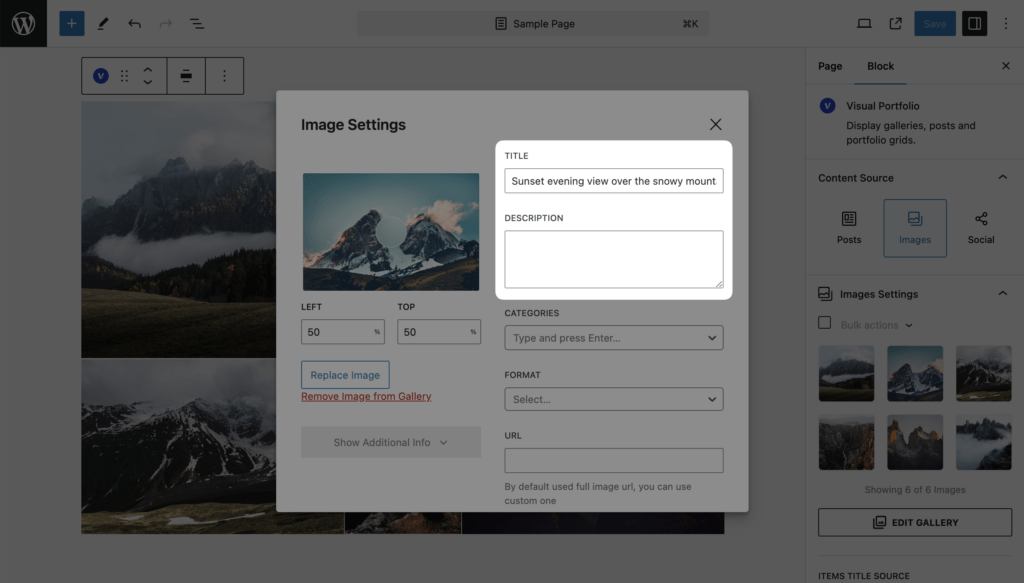
Categories
Add new categories by entering the name and pressing Enter. Categories can be shown above gallery items and used to filter them with the Filter module: https://www.visualportfolio.com/docs/gallery-blocks/layout-elements/filter/.
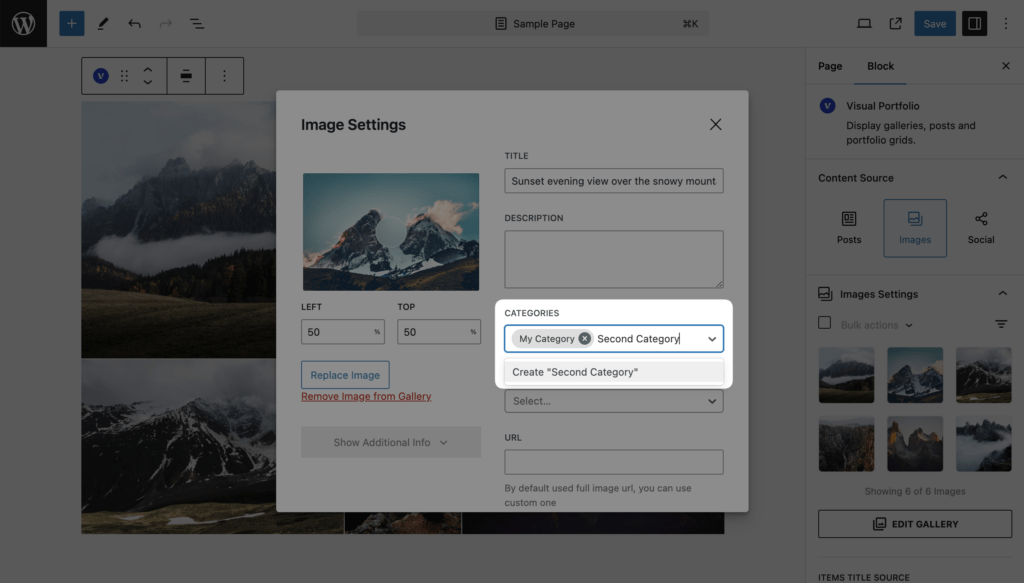
Format
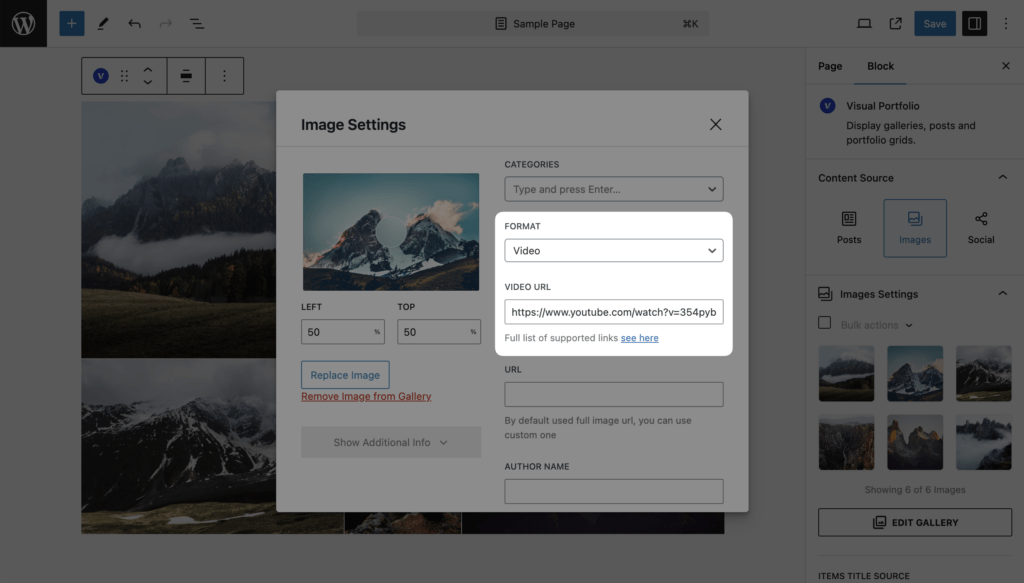
Choose from Standard, Video, and Audio formats. For video popups, select the Video format and enter the Video URL. See supported video and audio vendors for more information in the Project Formats documentation.
Standard
Use the Standard format for regular images.
Video
Use the Video format when the item should open or behave like a video item. When using the Video format, you can specify a Video URL for the item.
Gallery
Use the Gallery format when one item should represent a full album. When using the Gallery format, you can assign Album Images. These images are shown in the popup gallery when the item is clicked.
Albums
Album Images are available for items with the Gallery format. Use them when you want one gallery item to open multiple images in a popup. This is useful for:
- project highlights
- grouped photo sets
- before/after sets
- mini collections inside a single portfolio item
URL
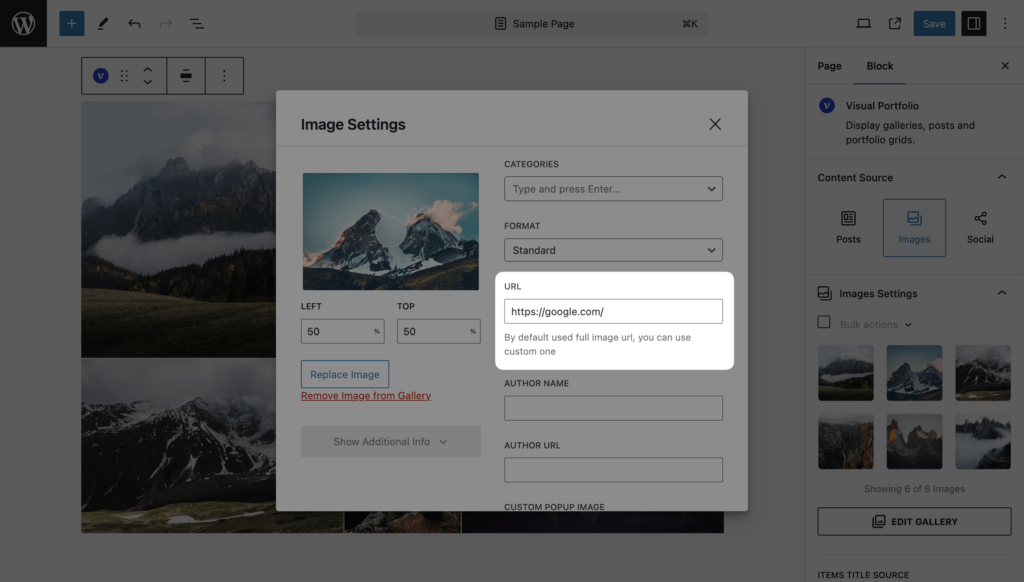
Set a custom URL for your item (default is the image URL). This won’t work if Items Click Action is set to Disabled or Popup Gallery.
Author
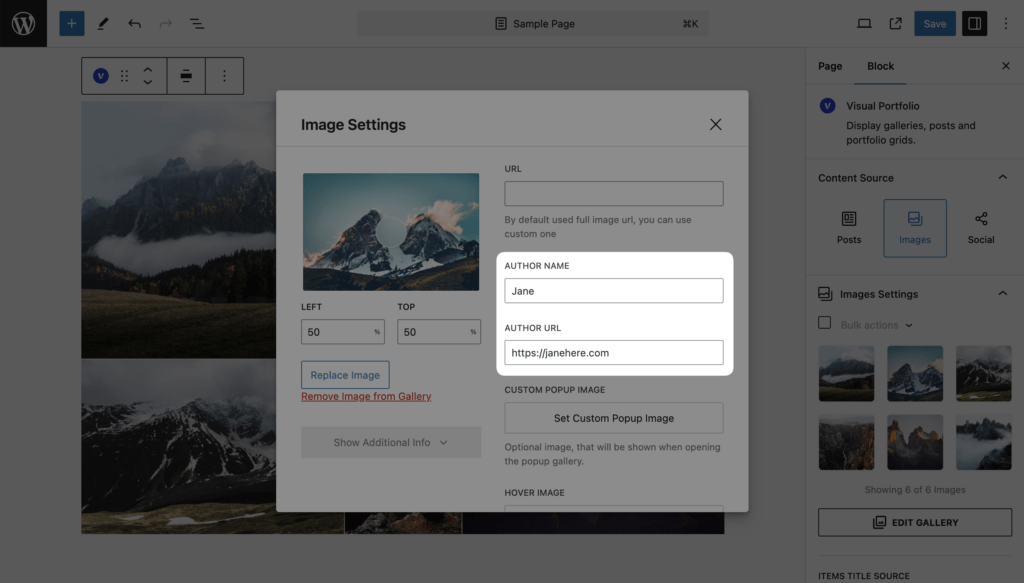
Set the author’s name and URL to display in the item metadata.
Custom Popup Image
Pro Feature
This is a part of the Visual Portfolio Pro plugin.
Purchase the Pro plugin to access this and other advanced features.
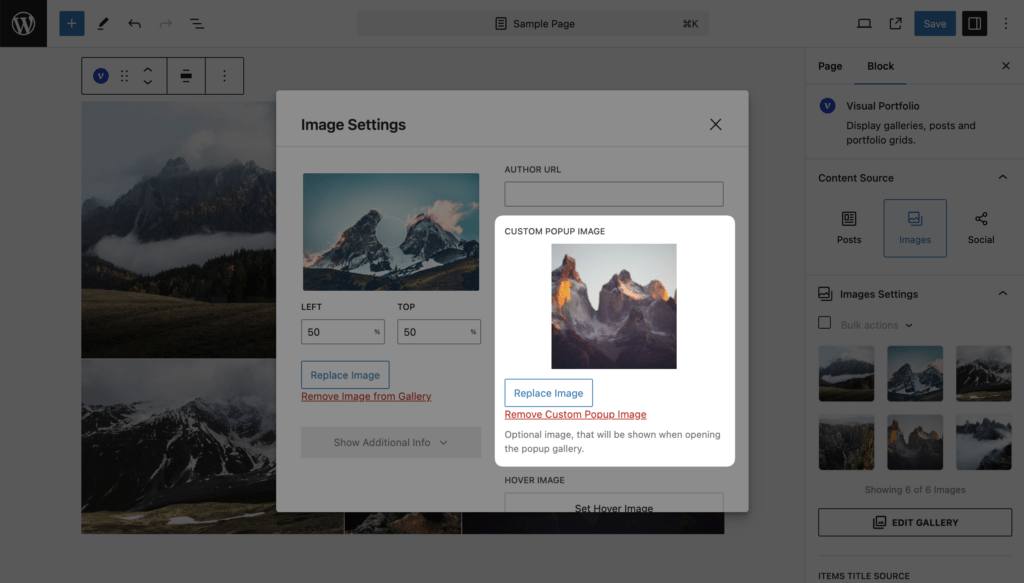
Optionally, use a custom image to display in the popup only. This is useful for showing different thumbnails and popup images.
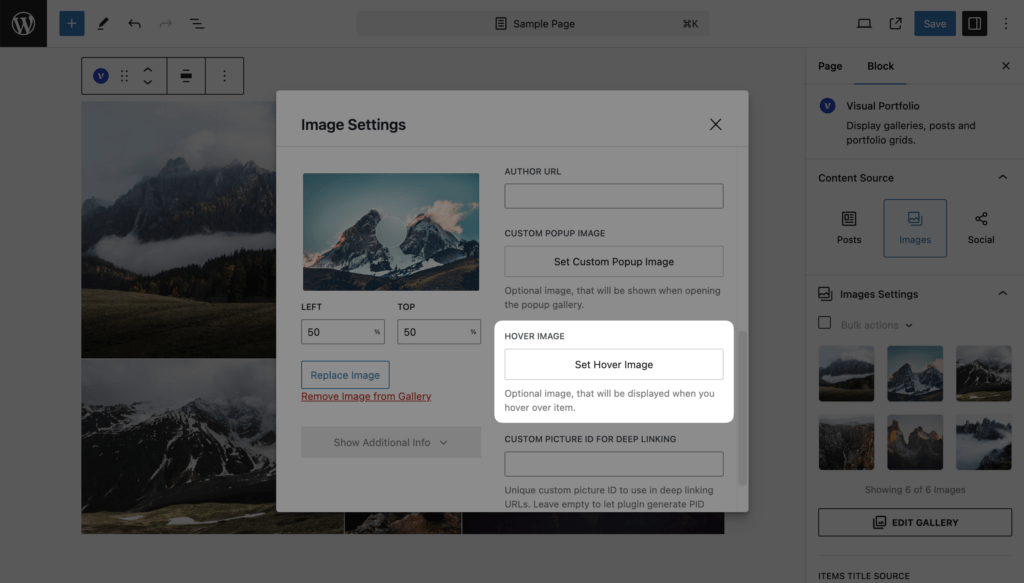
Hover Image
Pro Feature
This is a part of the Visual Portfolio Pro plugin.
Purchase the Pro plugin to access this and other advanced features.
Select an image to display when hovering over the gallery item. This option works well for displaying GIFs (click-to-see-example).
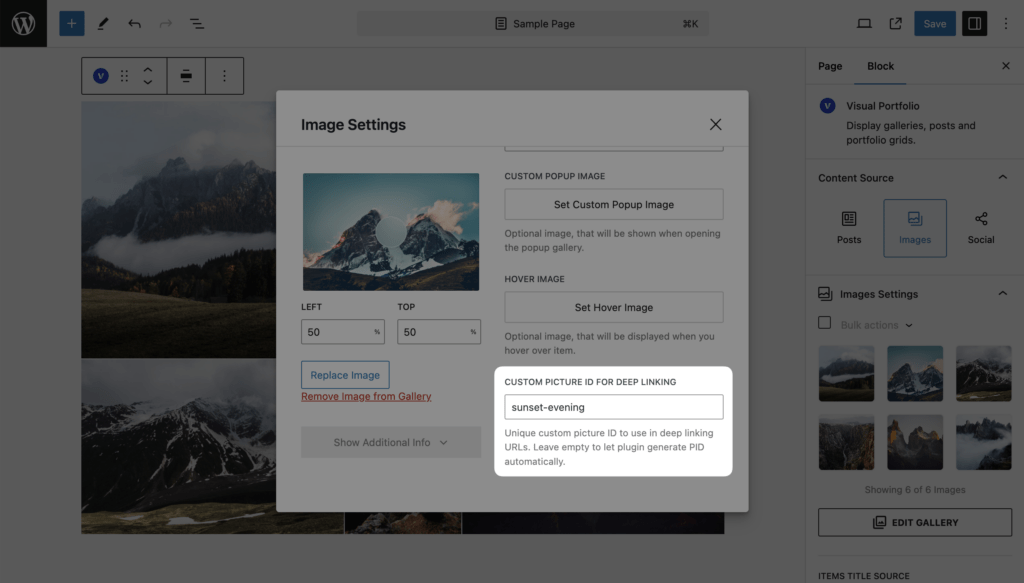
Custom Picture ID for Deep Linking
Pro Feature
This is a part of the Visual Portfolio Pro plugin.
Purchase the Pro plugin to access this and other advanced features.
Optionally set a Picture ID for deep linking in the popup gallery.
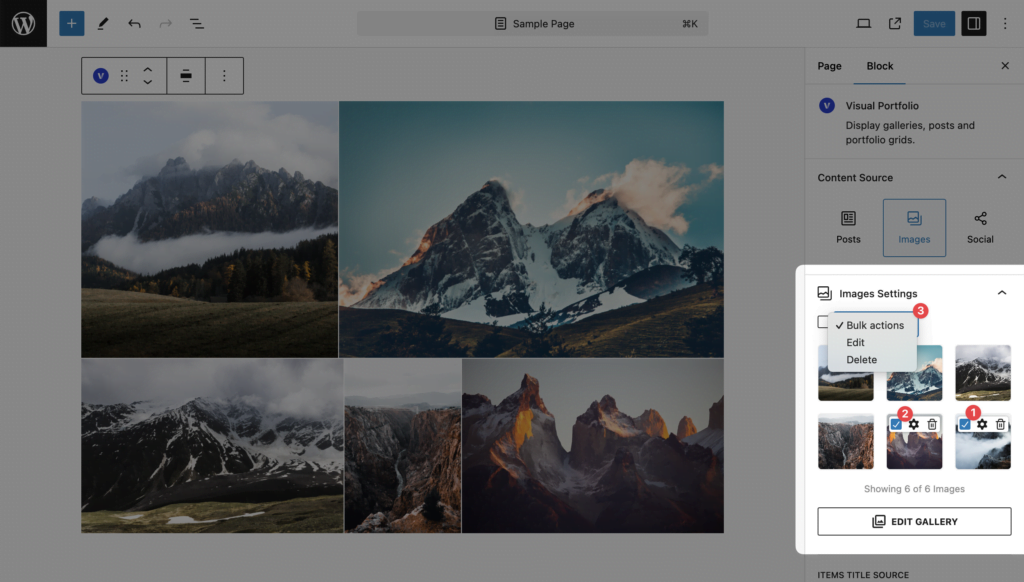
Bulk Edit
Edit media in bulk by selecting all or specific media, then choose Bulk actions and select Edit.
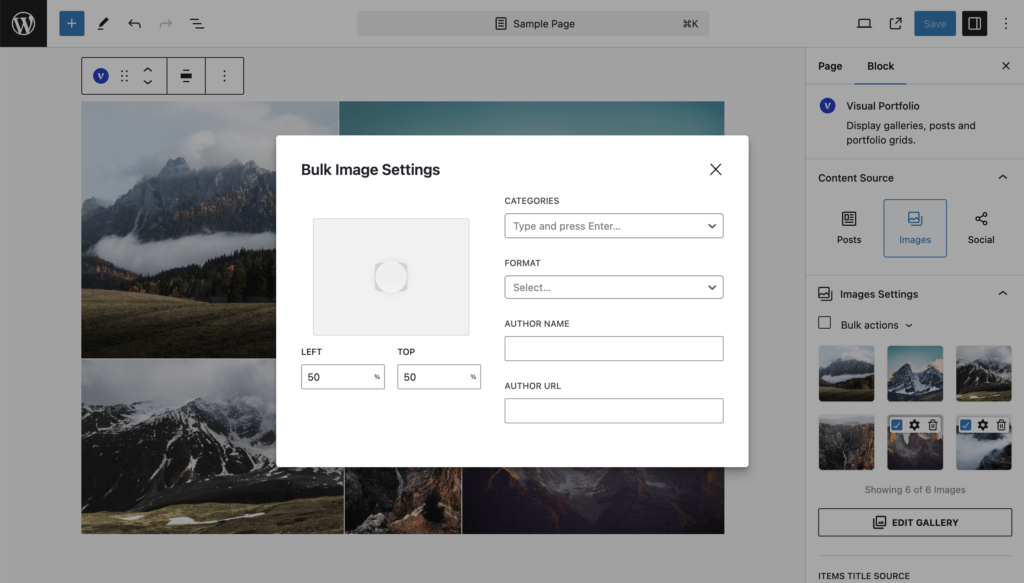
In the popup, edit various options like:
- Focal Point
- Categories
- Format
- Author Name
- Author URL
Media Output Settings
Titles and Descriptions
You can control where item titles and descriptions come from.
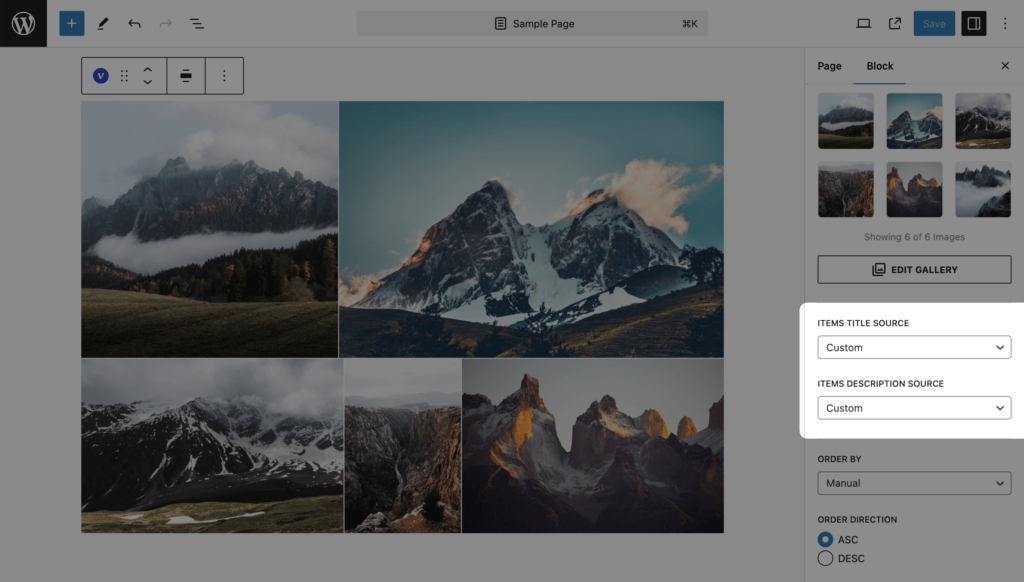
Available sources:
- None – No titles or descriptions displayed.
- Custom – Show user’s custom values.
- Image Title
- Image Caption
- Image Alt
- Image Description
Order
Customize the order of items.
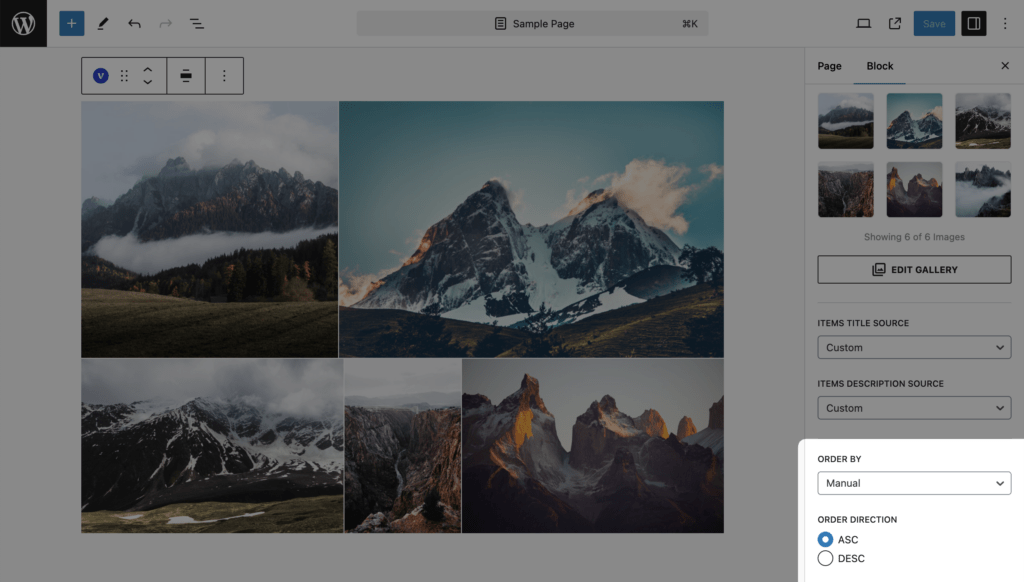
Options include:
- Manual
- Item Title
- Item Description
- Image Title
- Image Caption
- Image Alt
- Image Description
- Image Uploaded
- Random
Adjust the direction to ASC (ascending) or DESC (descending) using the Order Direction setting.