A justified gallery with a Hue blend mode overlay, giving photos shot on different days one house color with their own lightness.

eugene-tkachenko-YTUTwend838-unsplash
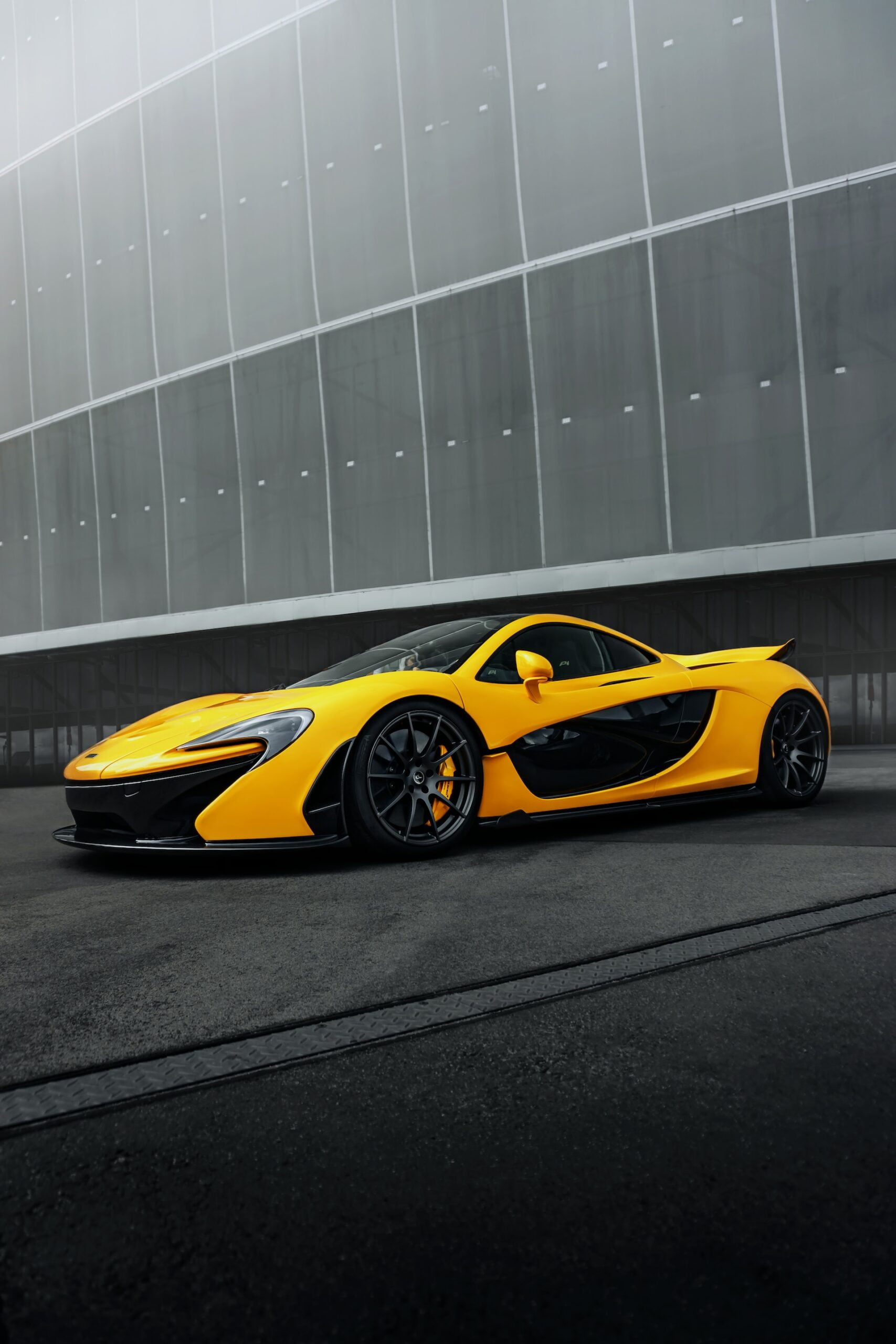
milad-fakurian-MXePG4kNWGw-unsplash
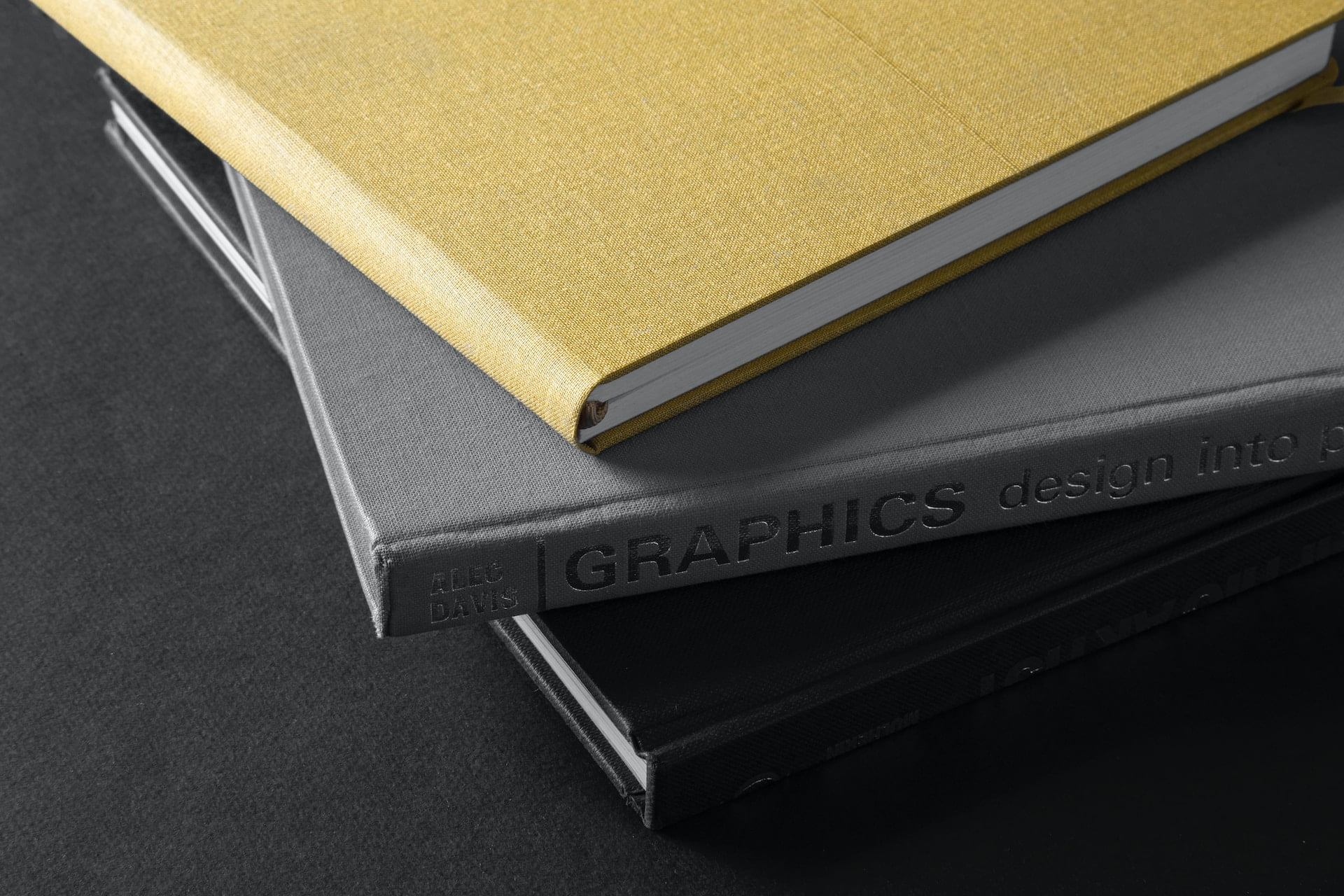
becca-tapert-BsiyAubKJGY-unsplash
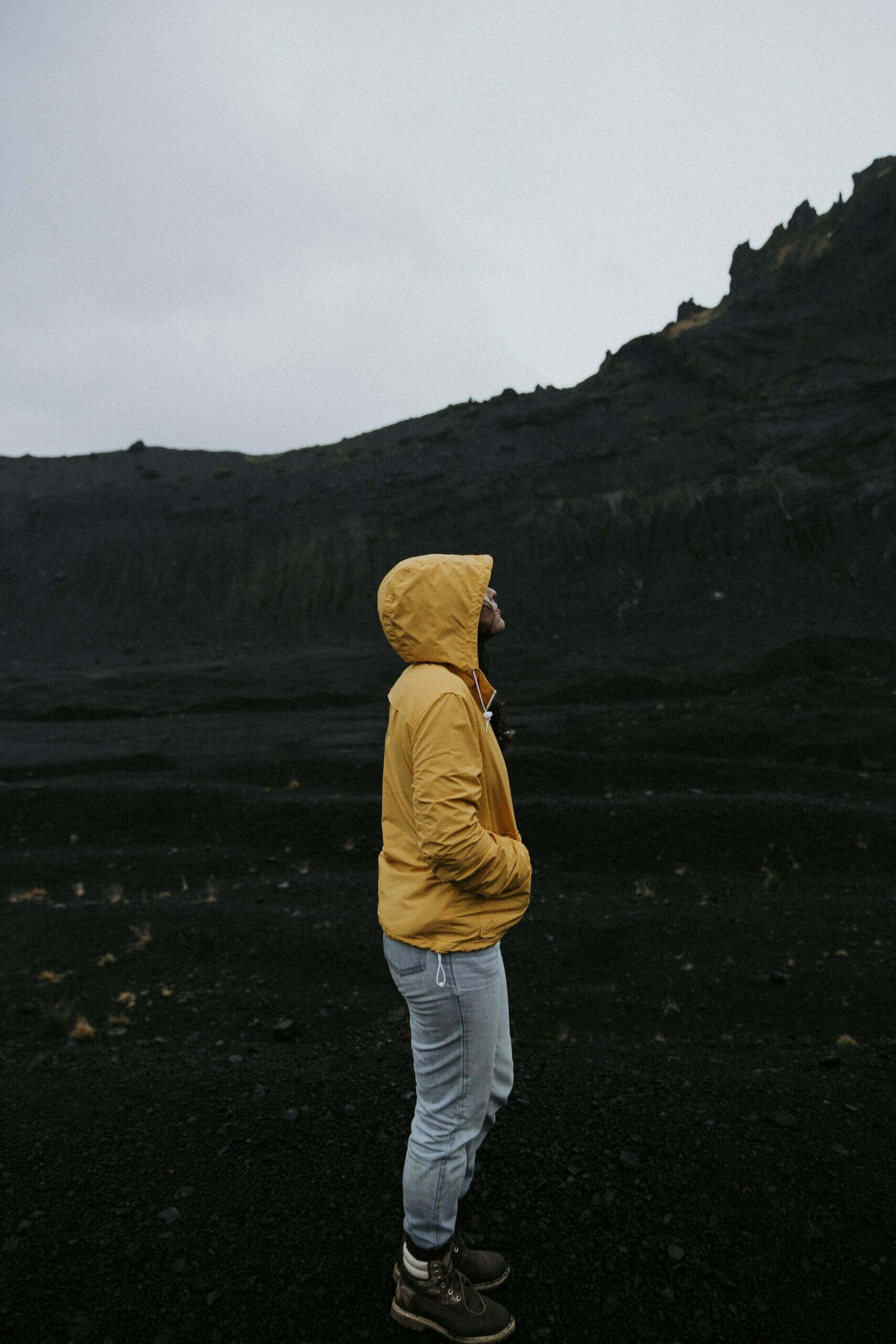
eduardo-cano-photo-co-9xL_8KCEQqE-unsplash
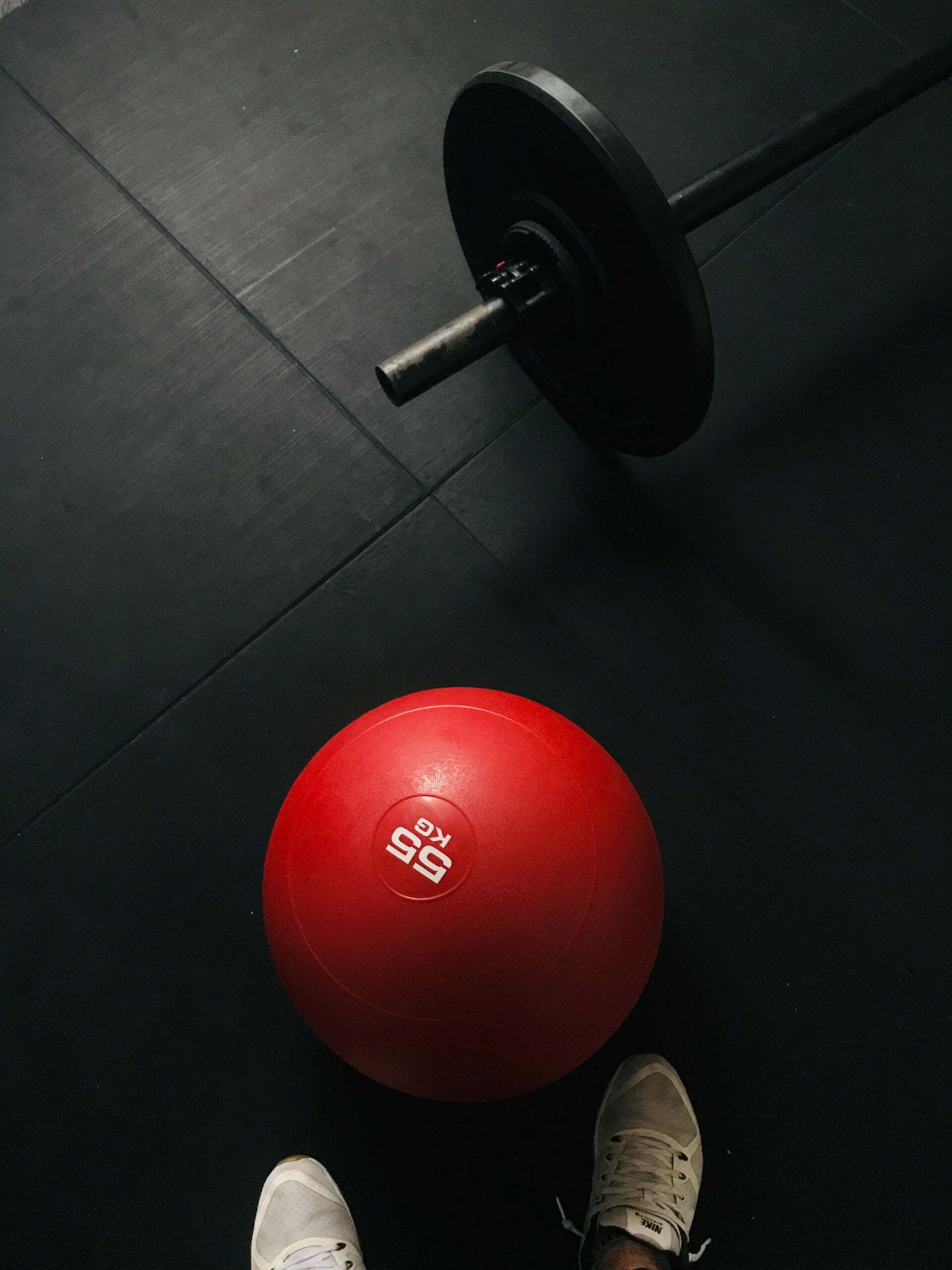
martin-blaszkiewicz-WM2WC9xUahI-unsplash
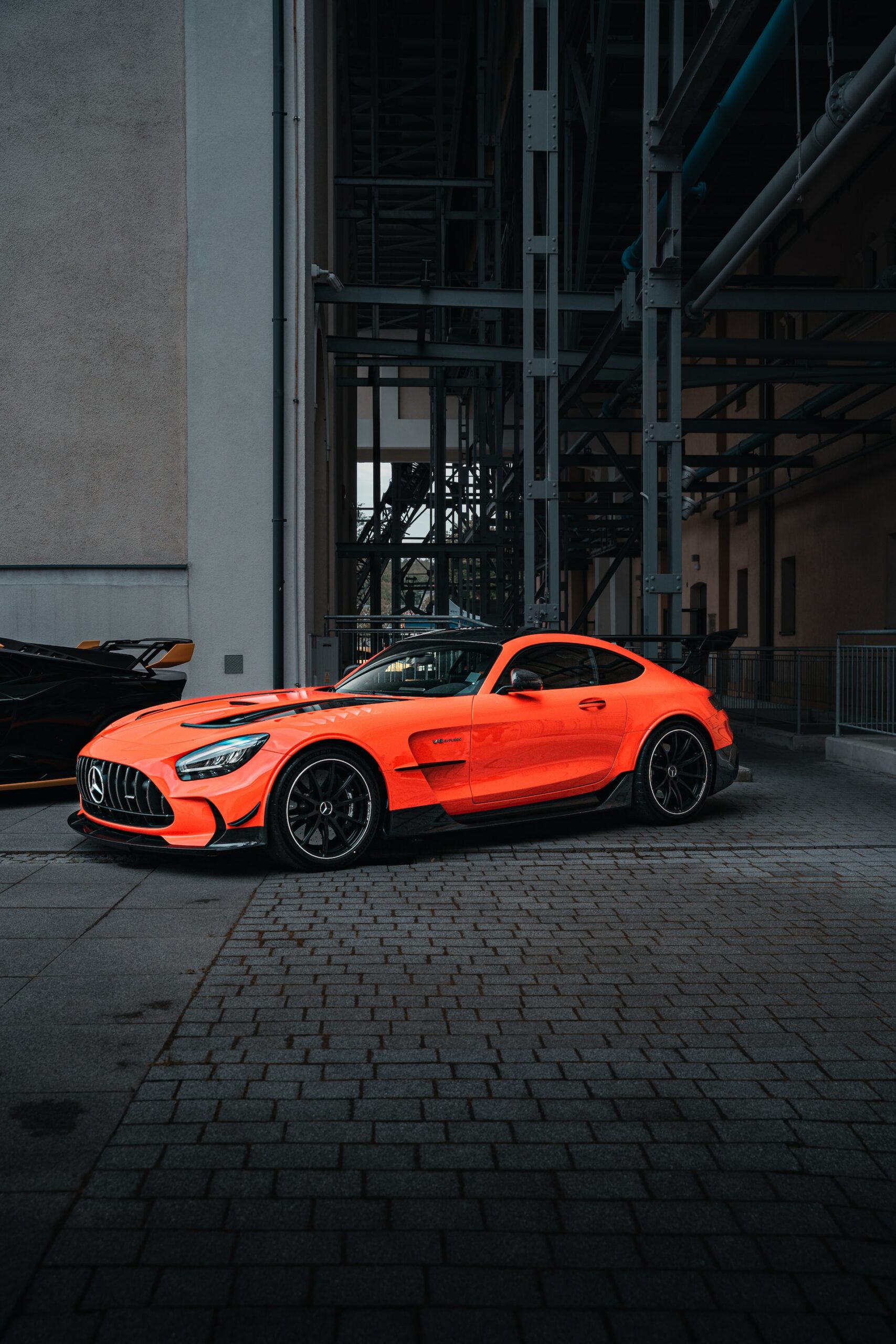
shyam-vHVaUUJ7w-A-unsplash

Mixing the overlay color into the photo
Every skin draws a layer over the image. On Classic it carries the icon and a tint, black at 20 percent when Display Icon is on with no color set. A blend mode decides how the color of that layer mixes with the pixels beneath. The rows above run on Hue, which keeps the hue of the overlay color and takes lightness and saturation from the photo. It is the CSS mix-blend-mode property, applied by the browser, so the uploaded files are untouched.
The alternative is the Image Filter, which grades the photo itself with brightness, contrast and grayscale. Blending reacts to what sits under it, so a single setting treats a dark frame and a bright one differently. That suits a set shot on different days under one house color. A filter is the better tool when every image should be graded alike, as on the masonry gallery with image filters demo.
Which modes exist and which skins take them
Blend Mode sits in the Skin panel, in the Colors section of the Overlay tab, and shows a Premium Only note in the free plugin. The skin settings reference has the full matrix of skins and settings.
- Fifteen modes besides the Normal default: Multiply, Screen, Overlay, Darken, Lighten, Color Dodge, Color Burn, Hard Light, Soft Light, Difference, Exclusion, Hue, Saturation, Color and Luminosity.
- Overlay Blend Mode is on all five skins. The caption has a separate one, on Emerge and Caption Move only.
- The blend runs against the overlay Background, a color or gradient with alpha, black at 20 percent on Classic.
- Overlay Display starts on Hover State Only and also takes Default State Only or Always.
- Row Height accepts 20 to 1000 px and defaults to 200. These rows run at 300, with Row Height Tolerance at 0.4 instead of 0.25, so they crop less.
- Last Row Align handles an incomplete last row with Left, Center, Right or Hide, and starts on Left.
Recreating the gallery above
- Insert the Visual Portfolio block, choose Media as the source and click Add Media. Open Layout, pick Justified, then set Row Height to 300 and Row Height Tolerance to 0.4.
- In Skin choose Classic. On the Caption tab turn Display Title and Display Categories off and Display Excerpt on, which puts the Media item description under each picture.
- On the Overlay tab open Colors, give Background a color and set Blend Mode to Hue. Set Click Action to Popup so a click opens the lightbox instead of the image file.
The layout is free, the blending is not
Pro is a separate download that already contains the free plugin, not an add-on that sits beside it. The free copy on WordPress.org carries the justified layout, the Classic skin, the Media Library source, the lightbox and the Colors sections, so a flat overlay tint costs nothing. Blend Mode is the paid line in that panel. The free versus Pro comparison lists the split, and the licenses are on the pricing page.
- Blend Mode on the overlay, and on the Emerge and Caption Move captions.
- Image Filter and Transform, each set separately for the normal and the hover state.
- Typography and Dimensions, the panels that change overlay fonts, padding and margin.
- The Caption Move skin, the tilt hover effect, and hover media, an image or video shown under the pointer.
Where blend modes trip people up
Why is there no title over the photos?
Classic puts the title under the image and lets only the icon onto it, so nothing done to the overlay moves text there. Switch to Fade or Fly, which draw the title on the overlay, or to Emerge, whose caption rises over the bottom edge. All three keep the same Blend Mode field. The FAQ on why the title is not shown on top of the image covers the swap.
What can I change in Colors without Pro?
Background and Text, so a solid or gradient tint works in the free plugin. Blend Mode, Typography and Dimensions are the Pro entries in those same panels. Custom CSS and the plugin’s CSS variables can set the same overlay colors, as changing fonts, colors and spacing shows.
Will the blend appear without a mouse?
Not on the default setting. A phone has no hover, so an overlay left on Hover State Only is never drawn. Set Overlay Display to Always, the fix in the hover effects FAQ, and the blended layer stays on screen for everyone. The Classic caption under the image stays visible either way, so the excerpt still reads on a phone.